In App Support
This guide shows how to contact Cloud Wallet support from inside the app, track your tickets, and reply until the issue is resolved.
Opening Support
-
Log in to your Chia Cloud Wallet account.
-
Open your account menu from the profile control, then click
Support:
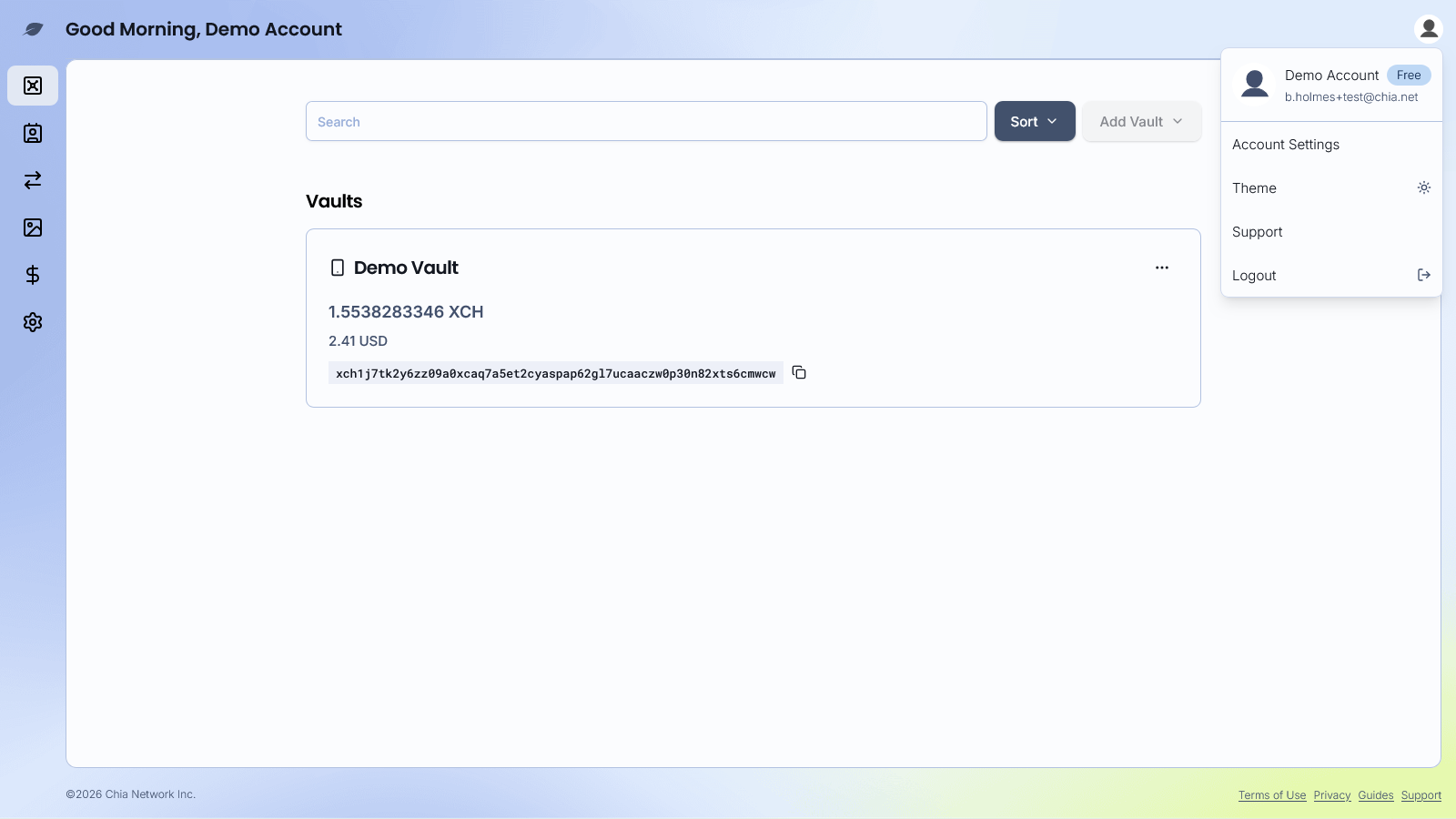
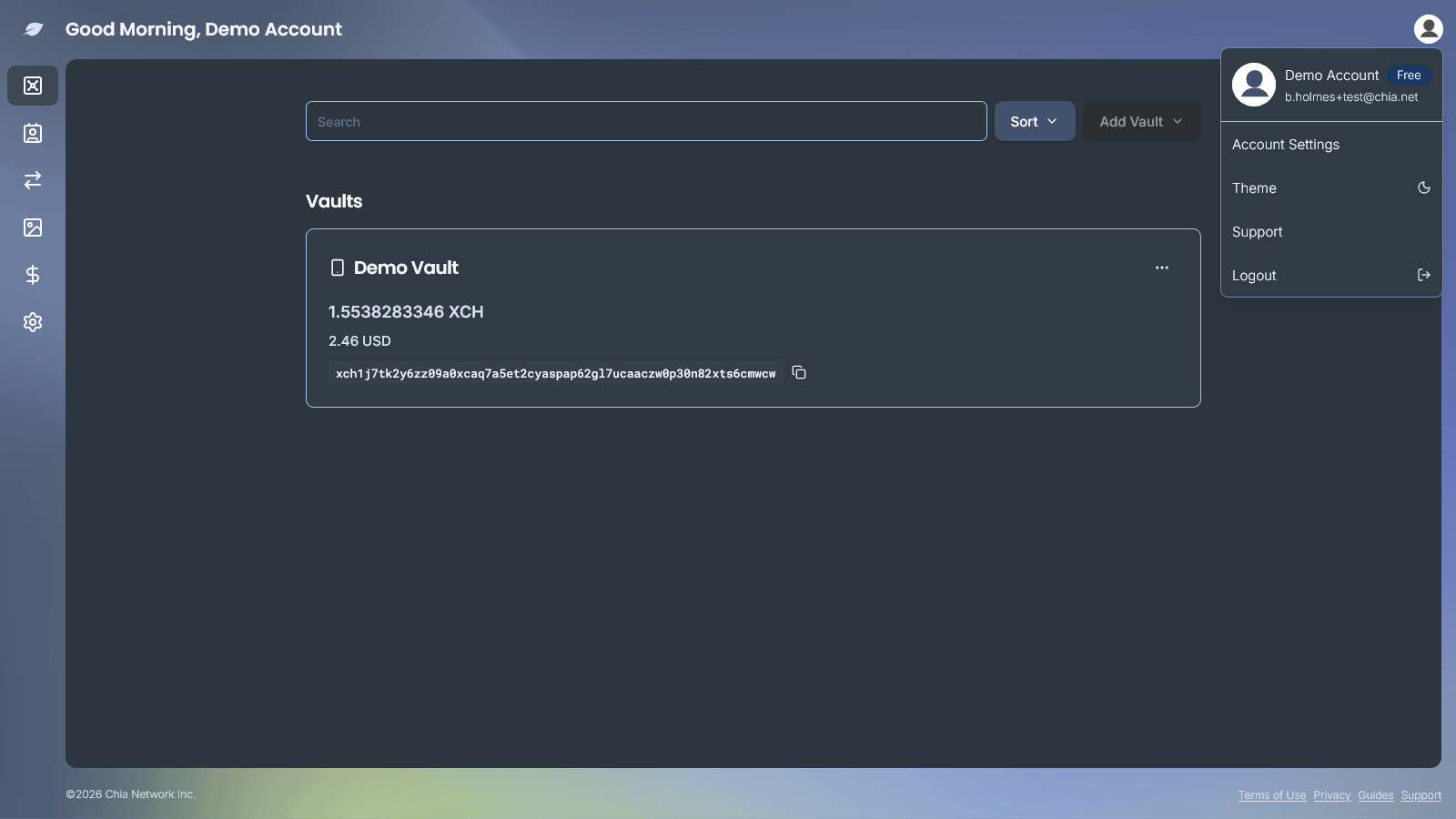
- The Support screen lists your tickets under
Your Tickets. UseCreate Ticketto start a new request. ToggleShow Completedwhen you want to include solved and closed tickets in the list:
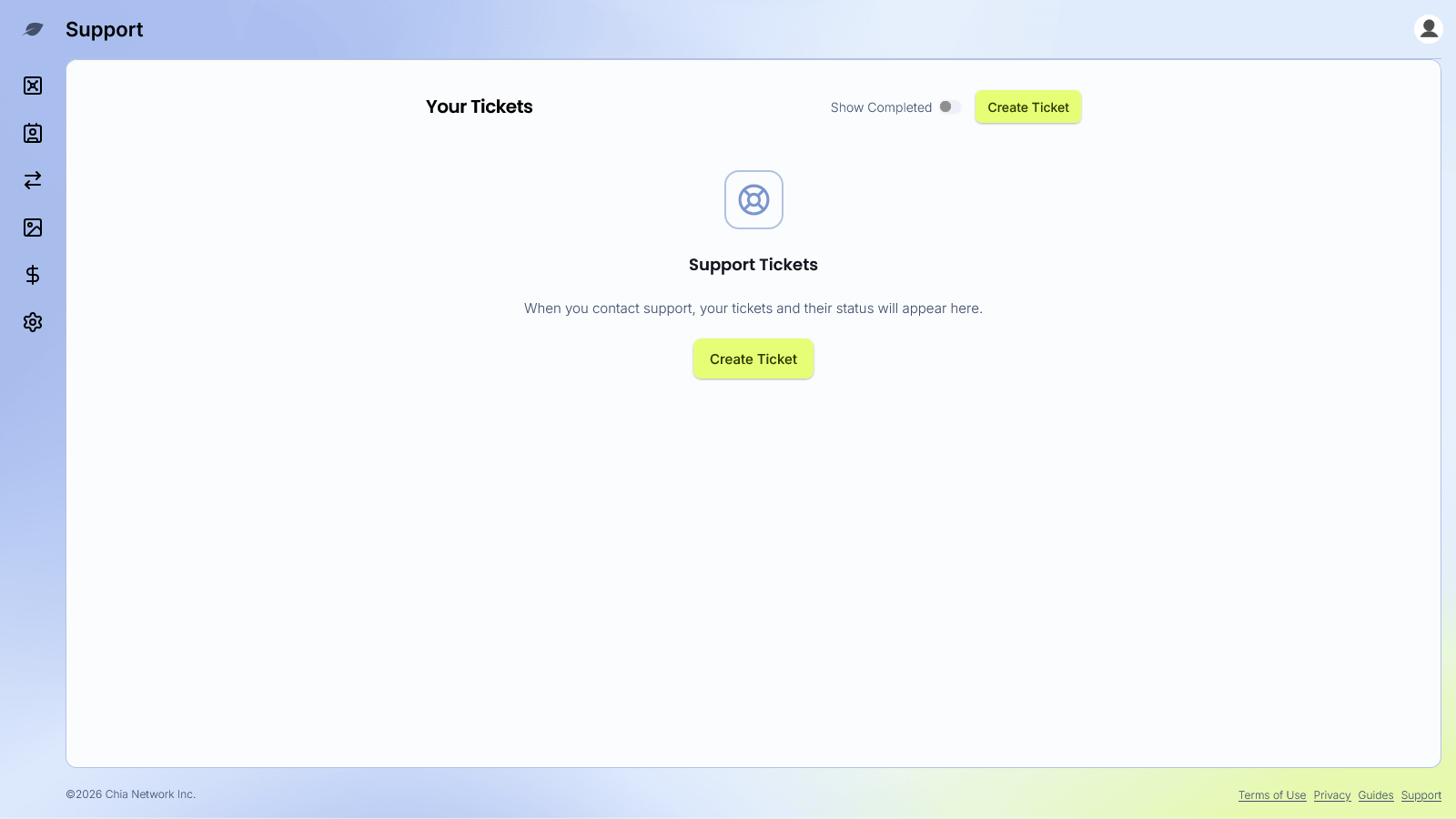
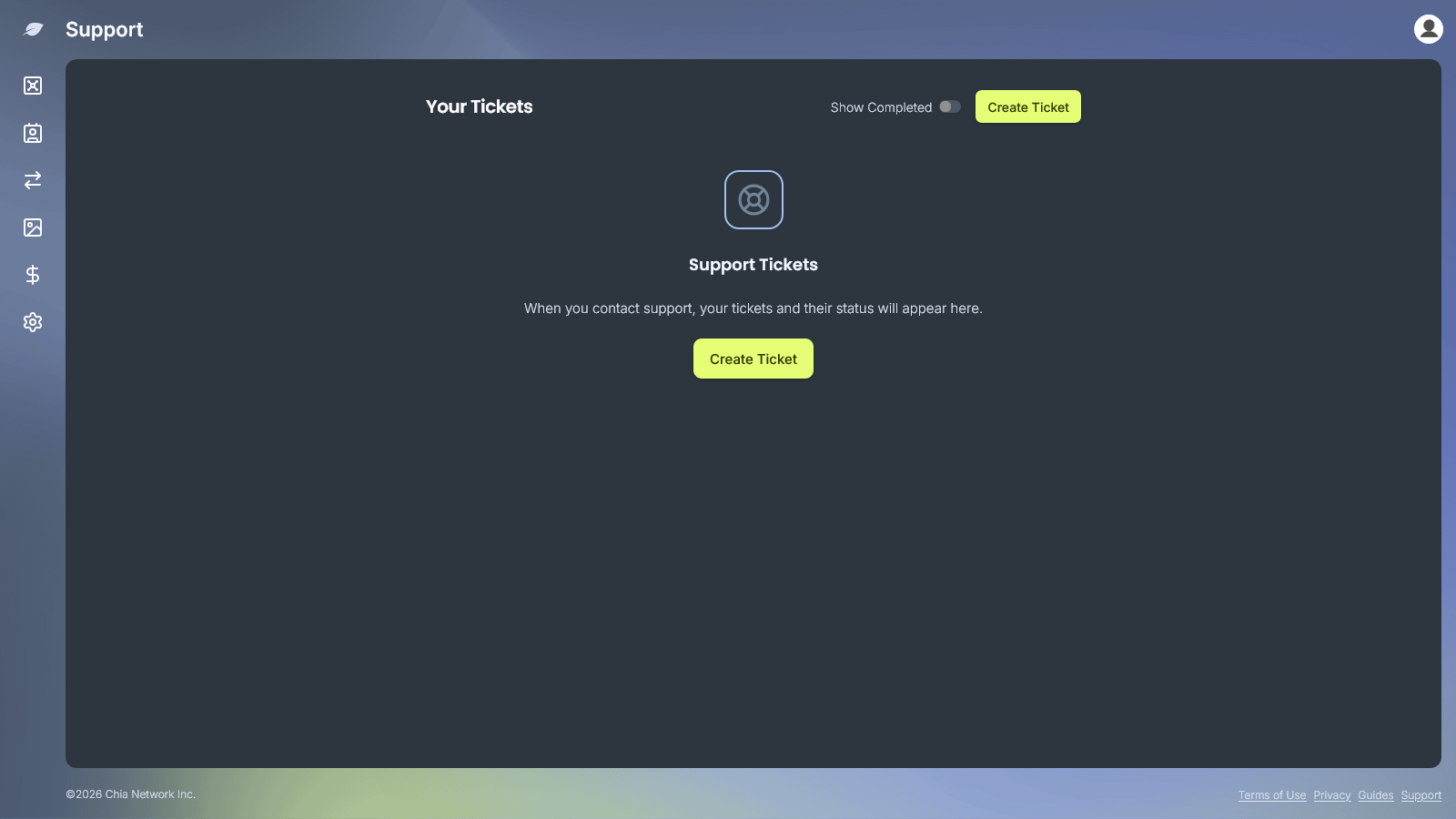
If you have not created any tickets yet, the empty state invites you to create your first ticket.
Creating a ticket
-
From the Support screen, click
Create Ticket. -
Fill in the form:
Subject(required): a short summary of the issue (up to 150 characters)Ticket Type(required): choose the category that best matches your request (see Ticket types)Details(required): a full description of what happened and what you expectedAttachments(optional): PNG or JPEG screenshots. Total attachment size must stay under 2 MBVault(optional): select the vault related to the issue when you have one or more vaults
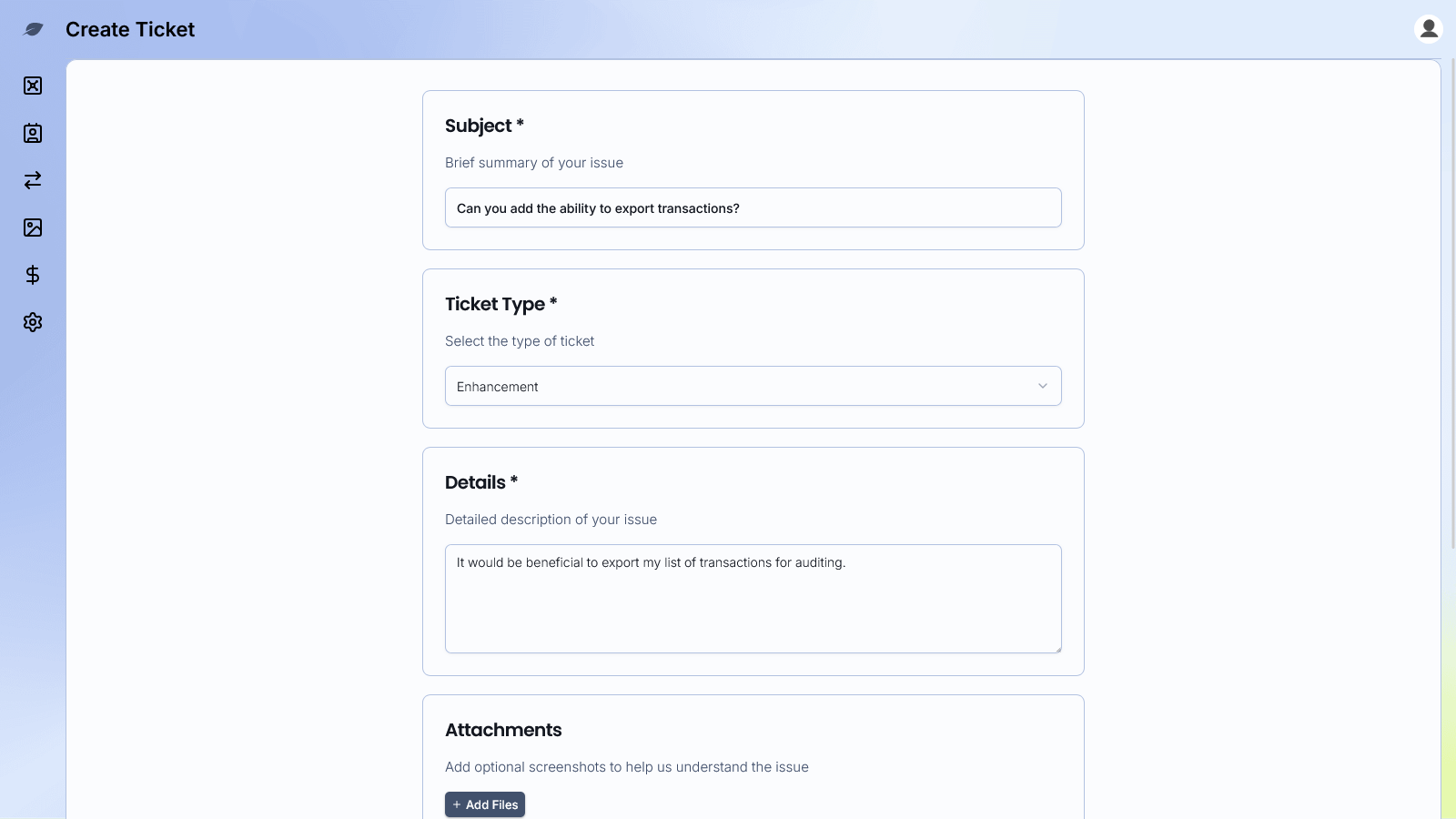
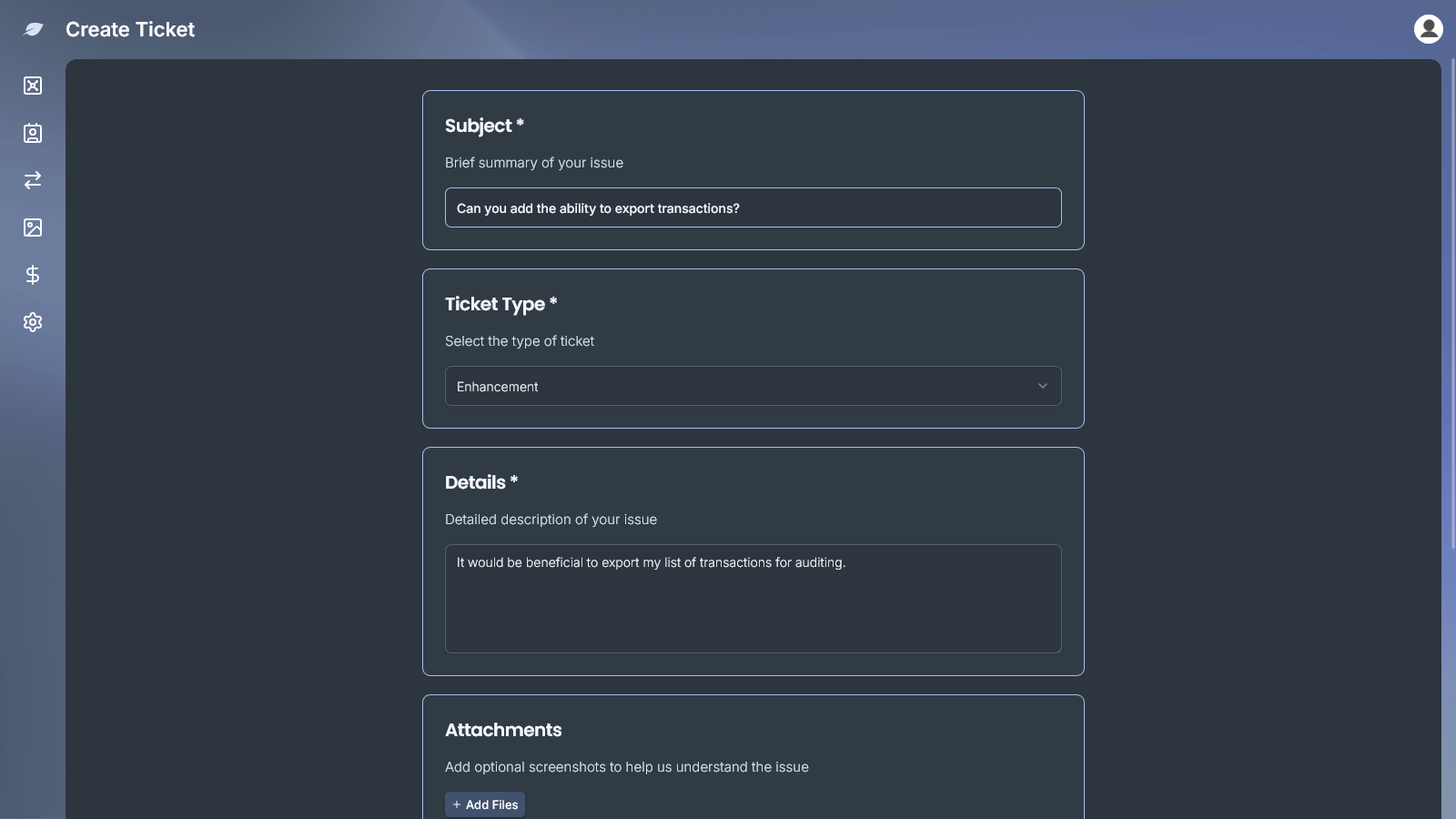
- Click
Submit Ticket. After a successful submit, the app returns you to the Support list and shows a confirmation that includes the new ticket number when available.
Click Cancel at any time to return to the Support list without submitting.
Ticket types
| Ticket type | Use when |
|---|---|
Support | General help with your account, vaults, or wallet features |
Bug Report | Something in the product is not working as expected |
Enhancement | You want to request a product improvement |
Buy XCH | Help with purchasing XCH in the Cloud Wallet |
Viewing a ticket and replying
-
On the Support screen, click a ticket card to open it.
-
The ticket detail view shows the subject, ticket number, status, created and last updated times, ticket type when available, the message thread, and a
Replysection at the bottom:
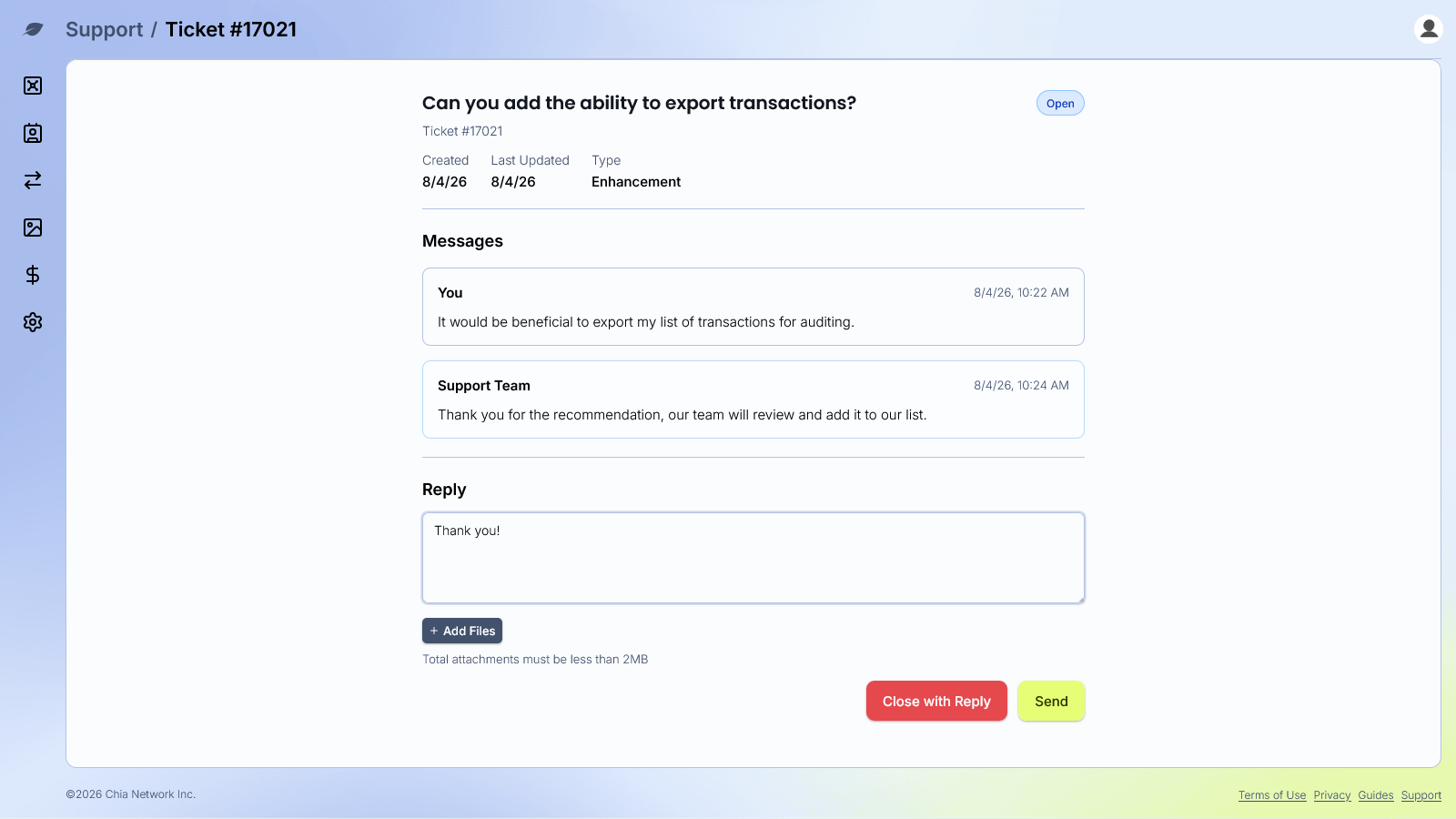
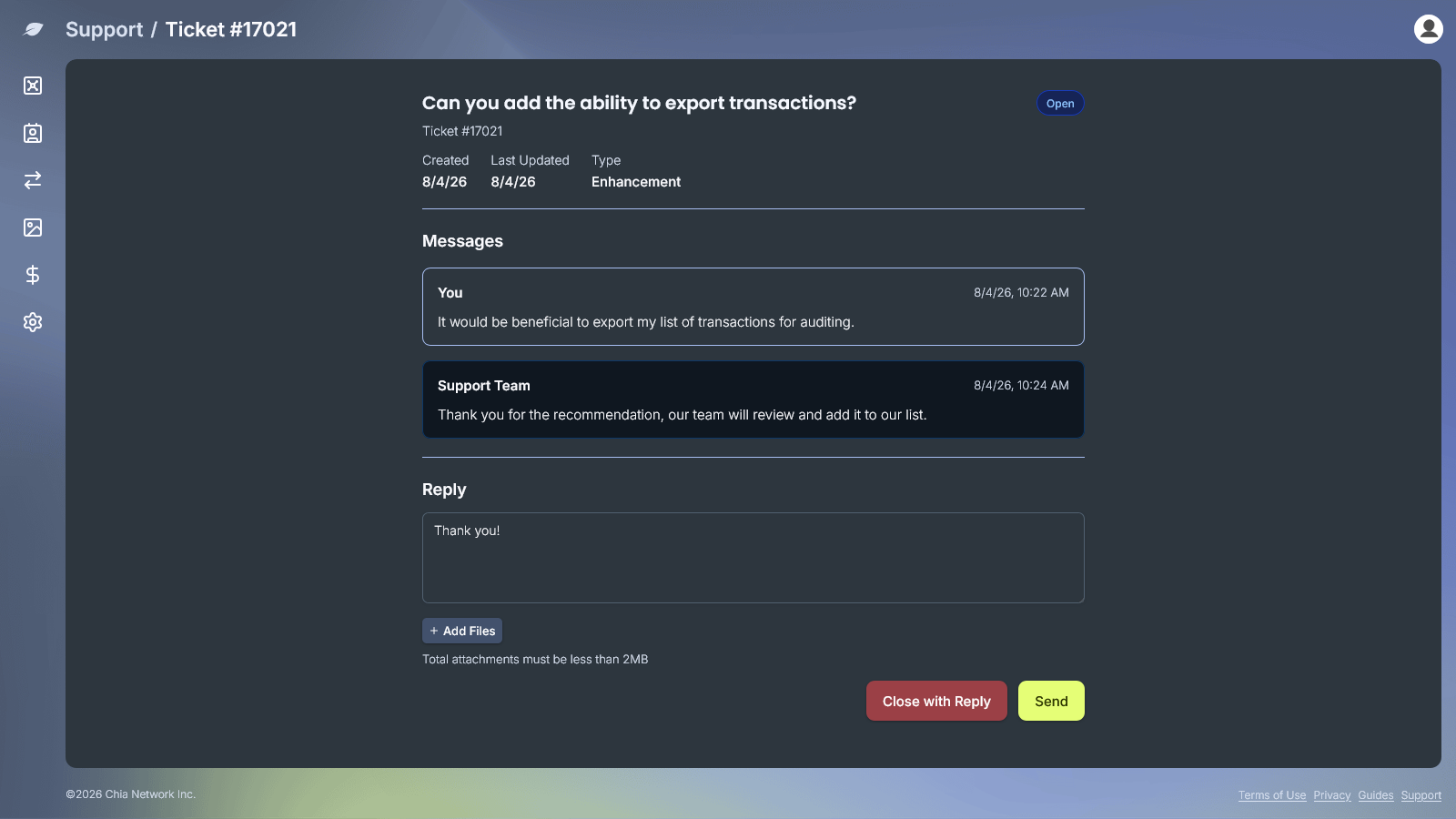
- To reply, enter a message in the
Replysection. You can attach optional PNG or JPEG files (same 2 MB total limit as when creating a ticket), then clickSend.
Closing or reopening a ticket
While a ticket is still open (not solved or closed):
- Click
Close without Replyto mark it solved without adding a message - Enter a reply and click
Close with Replyto close it with a final note
If a ticket is Solved, enter a reply and click Reopen with Reply to open it again.
Permanently Closed tickets show an alert that new replies are not accepted. Create a new ticket if you still need help.
Troubleshooting
If you cannot use In App Support, visit the #support channel in our Discord.