Coin Management
This guide shows how to view, split, combine, and sweep coins in a Chia Cloud Wallet vault.
You need a Cloud Wallet account and at least one vault. If you have not created a vault yet, follow the Getting Started Guide first.
Prerequisites
- An active Chia Cloud Wallet account with at least one vault that holds XCH or tokens
- Access to your vault spend key (Chia Signer app or passkey) to sign split, combine, and sweep transactions
Open Manage Coins
You can open Coin Management from a vault or from a specific token.
From a vault (XCH)
-
Log in to your Chia Cloud Wallet account and open the vault.
-
Open the vault
Moremenu and clickManage Coins:
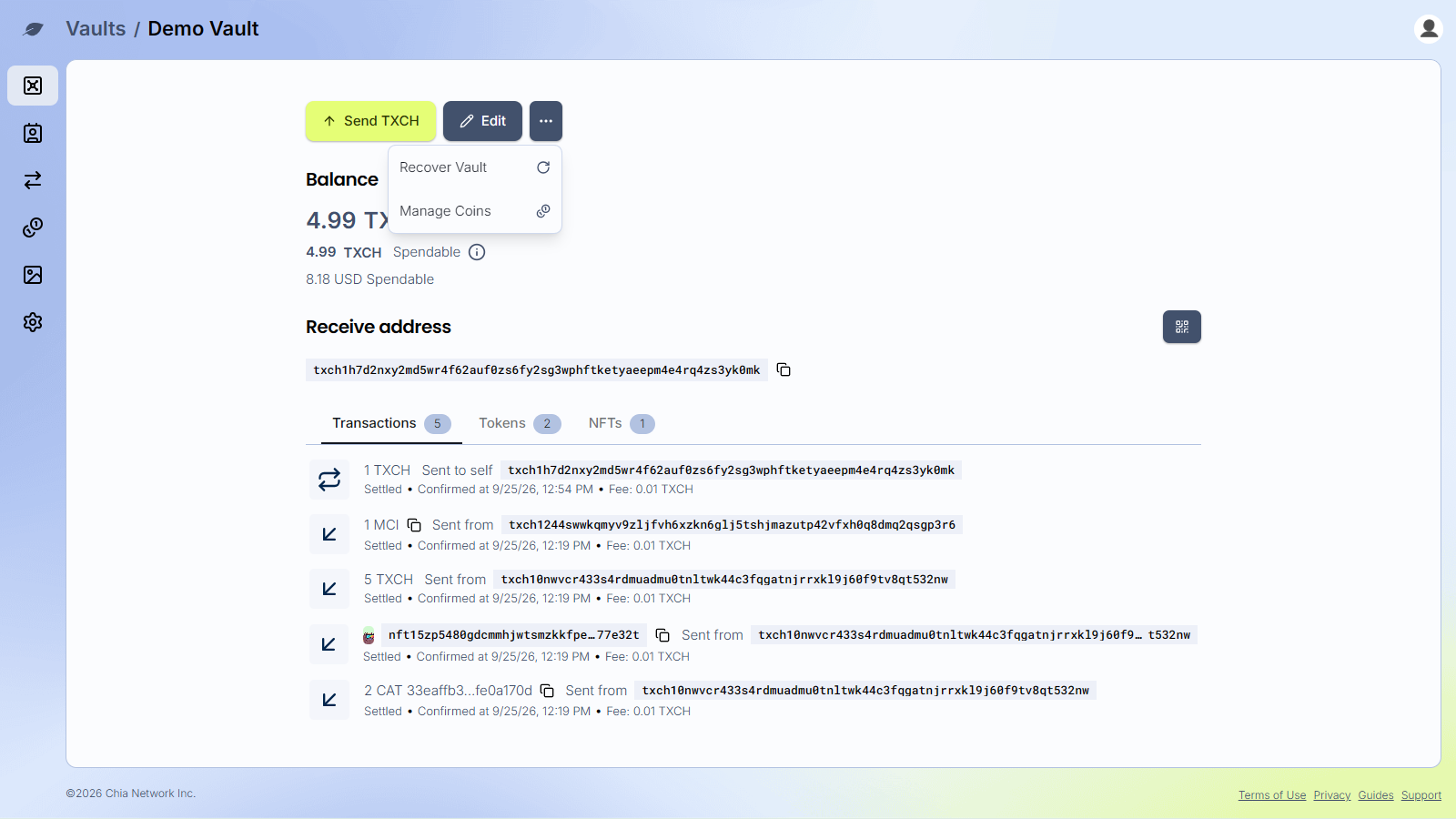
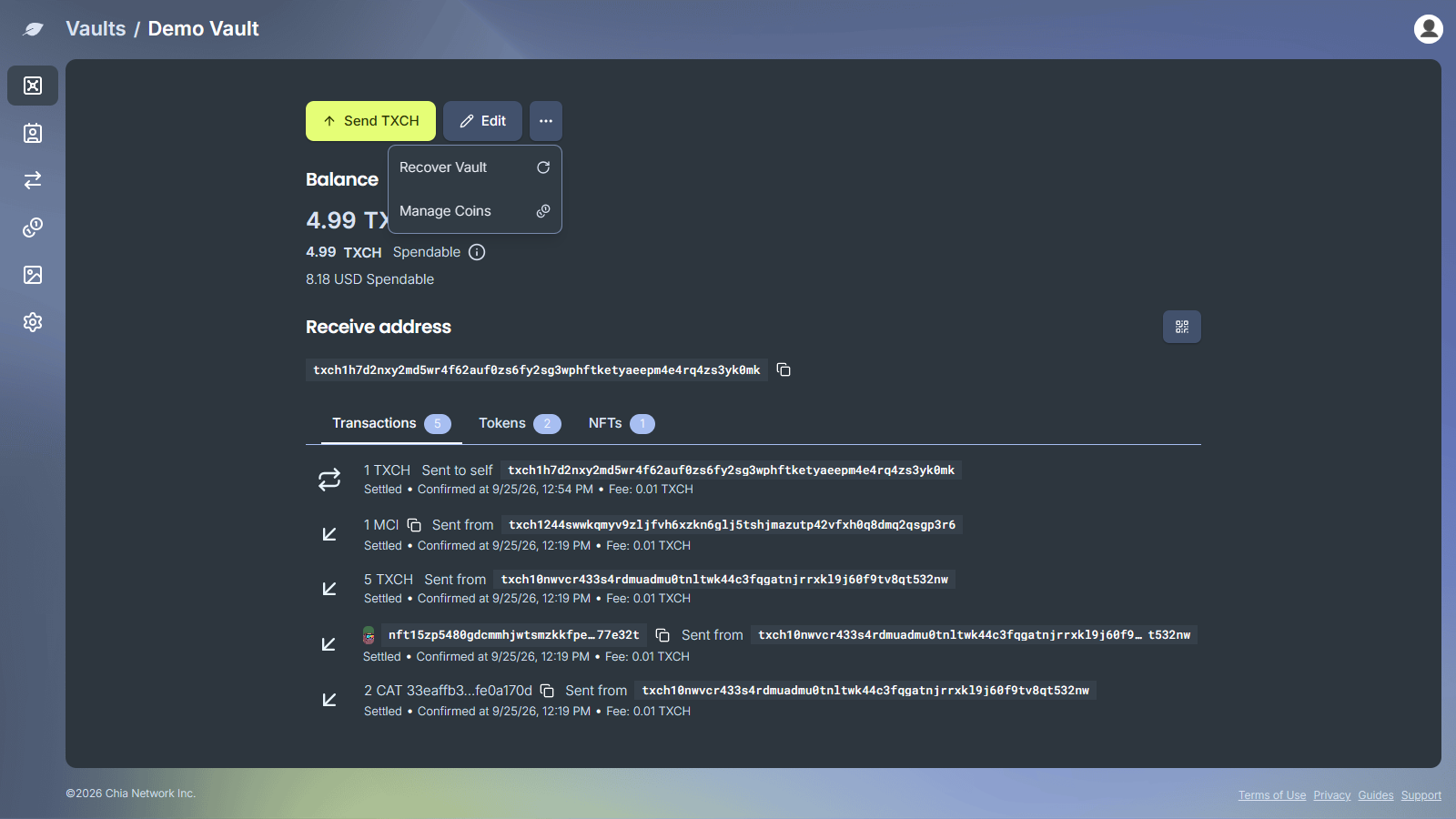
The XCH coins screen is titled Manage Coins.
From a token
-
Open the vault, go to the
Tokenstab, and open the token. -
Click
Manage Coinson the token page.
The token coins screen is titled Manage Tokens and uses the same split, combine, and sweep flows, with labels such as Split Tokens and Combine Tokens where applicable.
Read the coins list
The coins screen shows your balance and a table of coins for that asset.
- Total balance and
Spendablebalance appear at the top. Spendable can be lower than total when some coins are locked by pending transactions or reserved by open offers. - By default the list shows settled, unspent coins you can act on. Two toggles add more rows for inspection only:
Include Pending— coins tied to transactions that are not fully settled yet (for example still confirming). Useful when spendable balance looks lower than you expect and you want to see what is locked.Include Spent— coins that have already been spent. Useful for history and for matching amounts to past transactions. Pending and spent coins appear in the list when enabled, but they are not selectable for split or combine.
- Selectable coins are settled and unlocked. Coins linked to an open offer may show a marker that the coin is linked to an open offer.
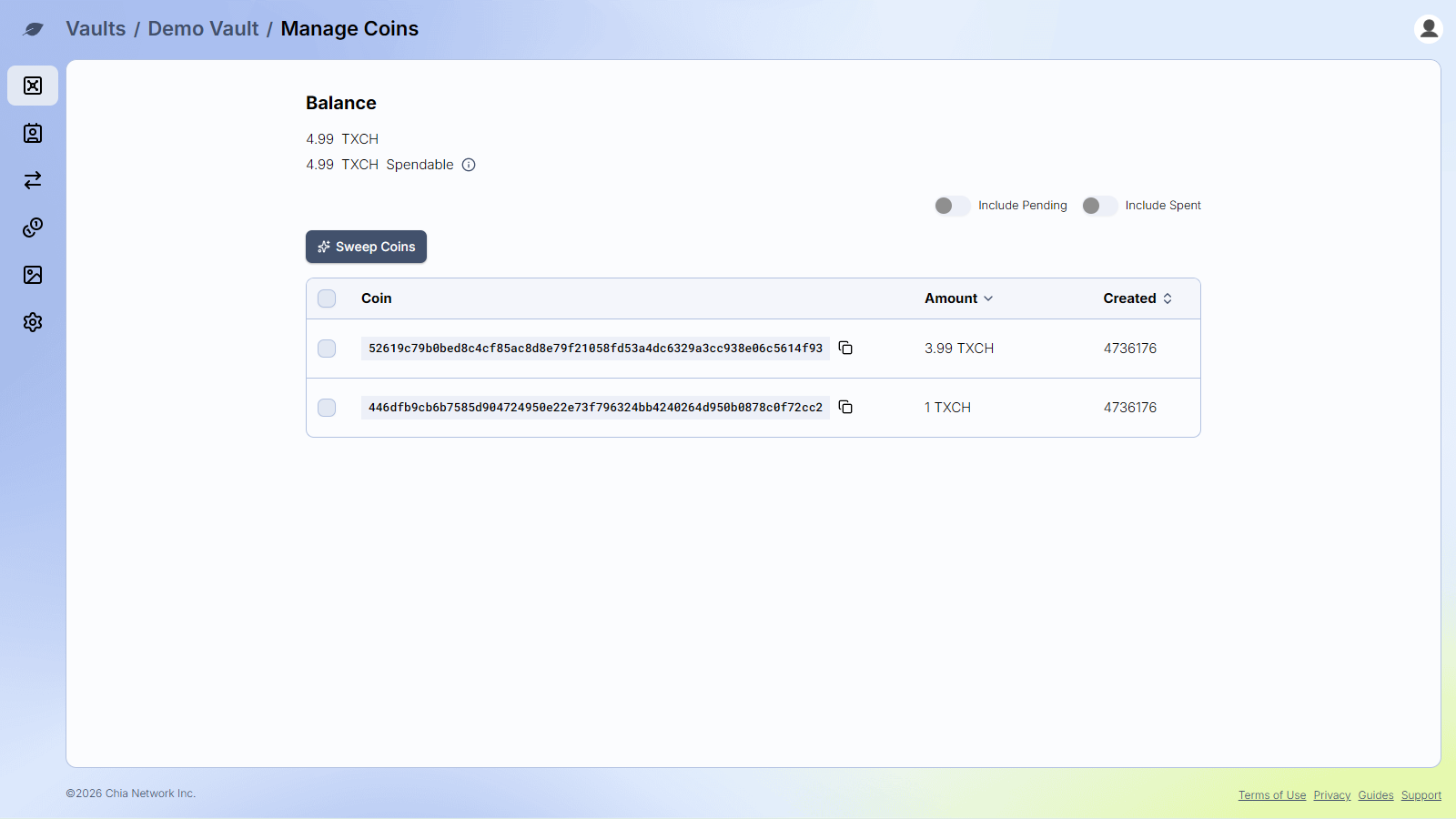
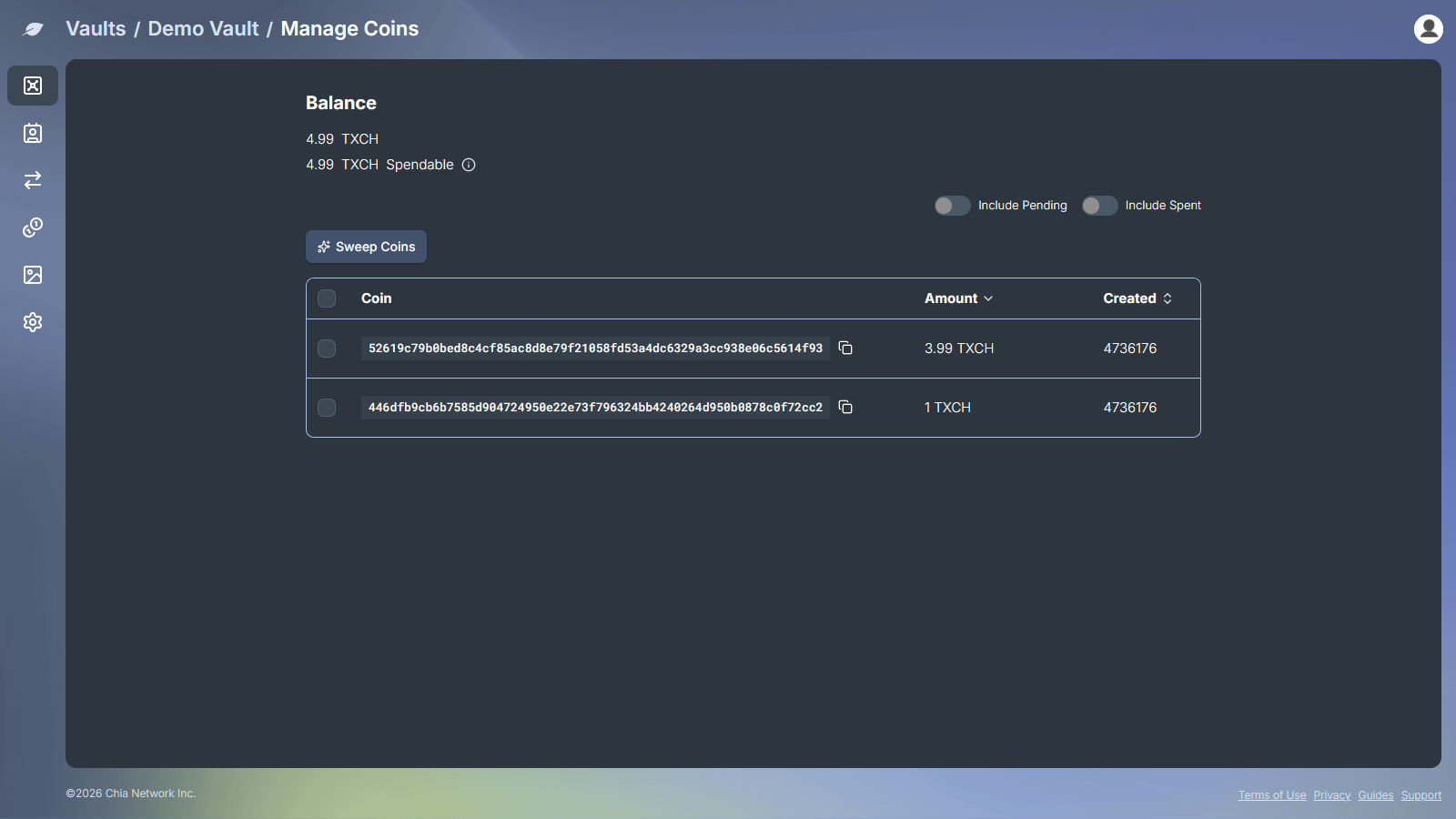
Common columns include coin id (Coin or Token), Amount, Created (block height), and Spent when spent coins are included.
Split coins
Split turns one or more selected coins into smaller coins. This is useful when you want smaller denominations.
-
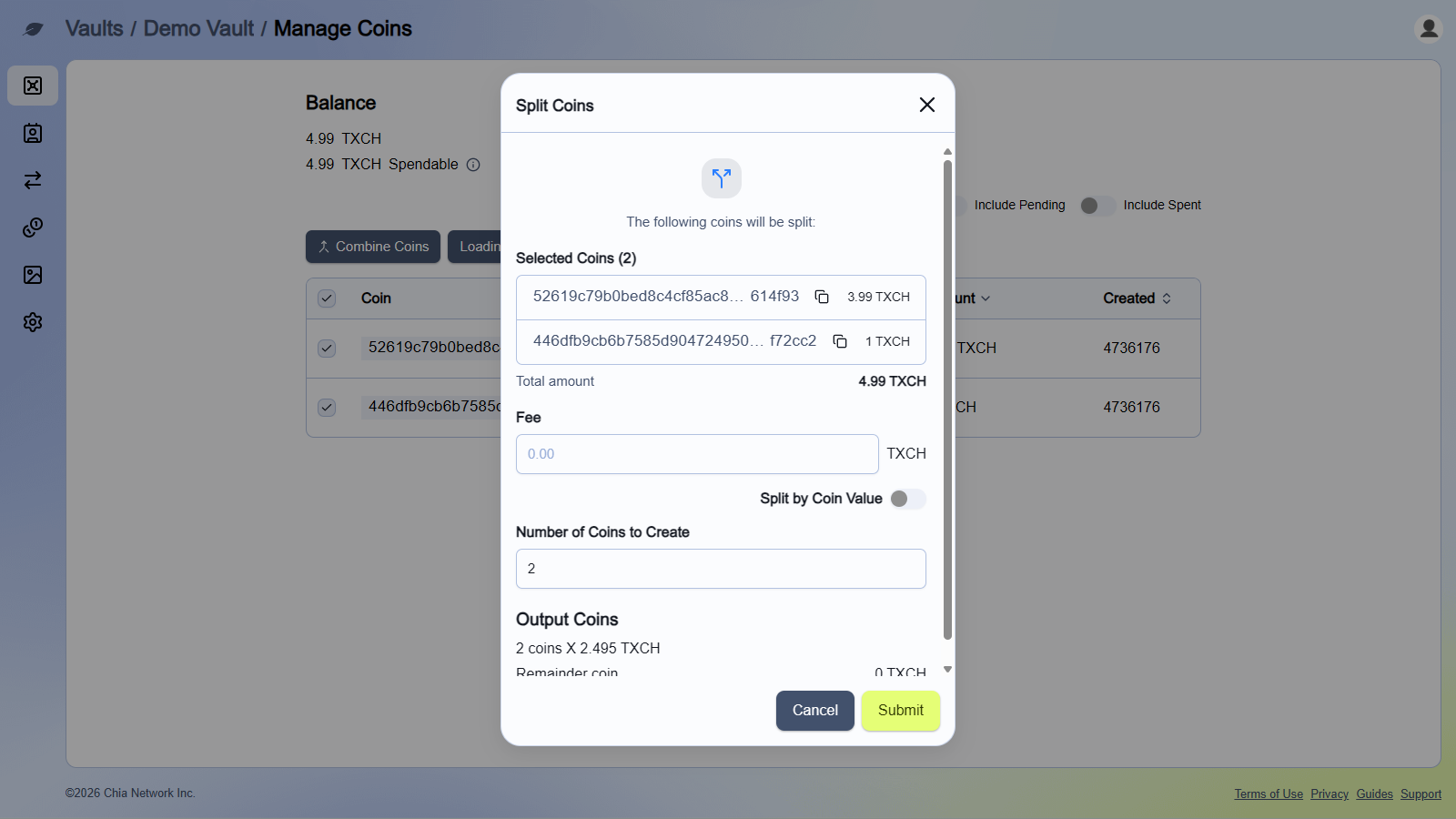
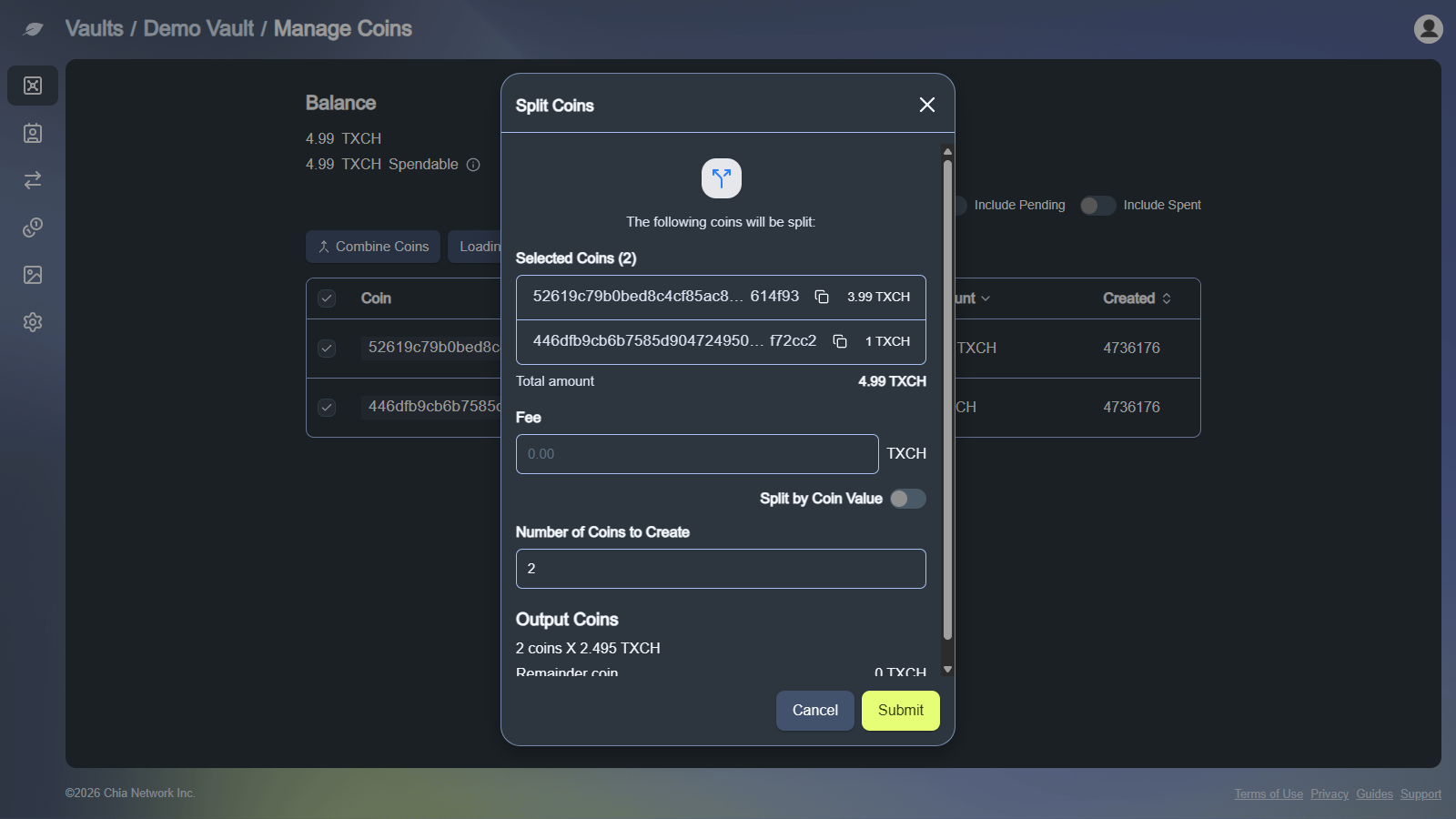
Select one or more selectable coins. Each selected coin must have an amount greater than the minimum unit for that asset.
-
Click
Split Coins(orSplit Tokenson a token screen). -
Review the selected coins and set a
Feeif needed. -
Choose how to split:
- Leave
Split by Coin Value(orSplit by Token Value) off to setNumber of Coins to Create(2 to 500) - Turn
Split by Coin Value(orSplit by Token Value) on to setValue of Each New Coin(orValue of Each New Token)
- Leave
-
Review
Output Coins(orOutput Tokens) and any remainder, then clickSubmit.
- Confirm the
Split Coinssignature request (Sign and Sendfor a passkey, or approve the request in the Chia Signer app).
For XCH, the fee comes from the selected coins. For tokens, the fee is paid in XCH and does not reduce the token output amounts.
Combine coins
Combine merges two or more selected coins into one.
-
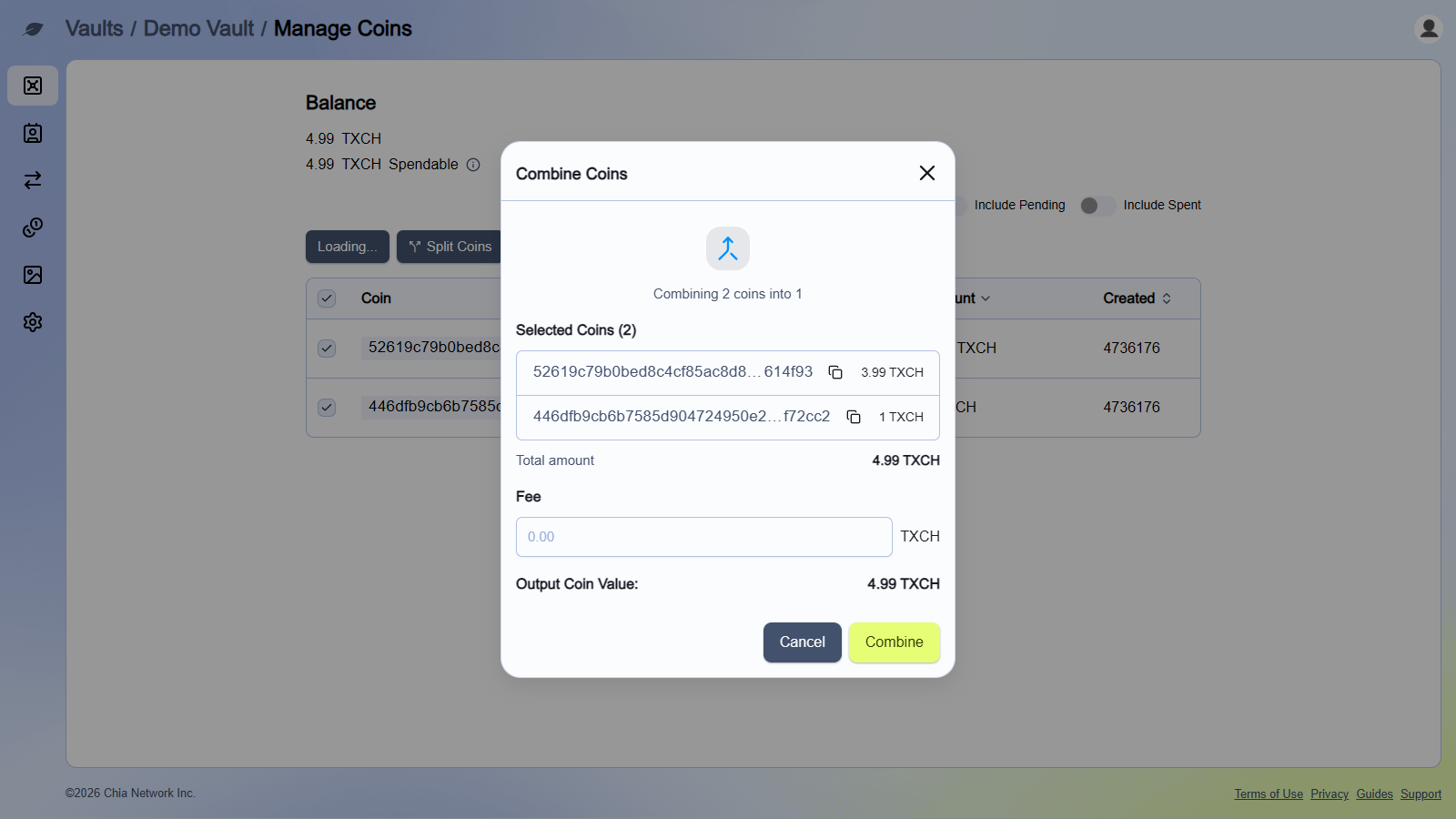
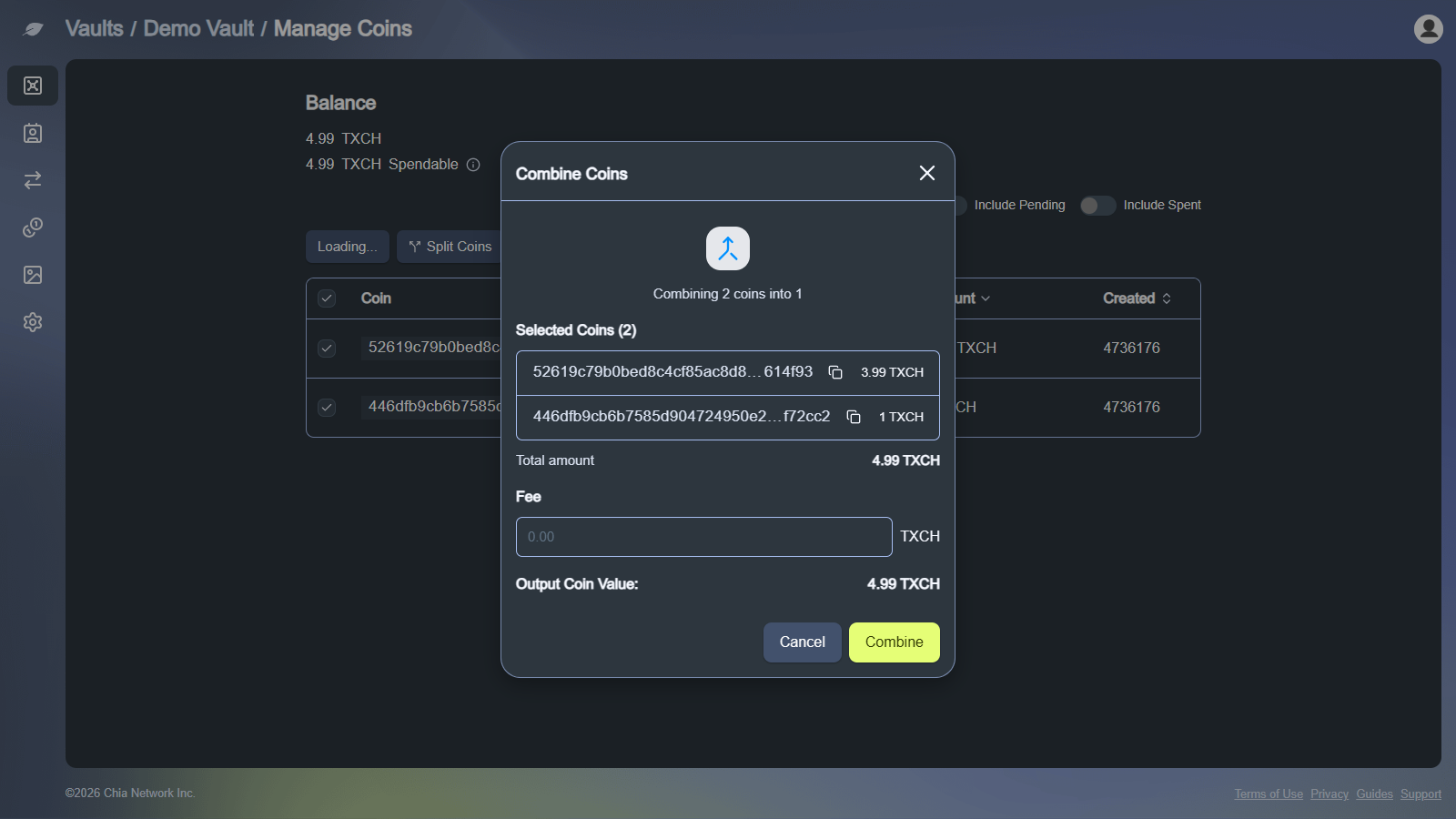
Select at least two selectable coins of the same asset.
-
Click
Combine Coins(orCombine Tokens). -
Review the selected coins, set a
Feeif needed, and confirm theOutput Coin Value(orOutput Token Value). -
Click
Combine.
- Confirm the
Combine Coinssignature request (Sign and Sendfor a passkey, or approve the request in the Chia Signer app).
A single combine can include up to 500 XCH coins or 100 tokens. If you select too many, reduce the selection and combine in batches. If the fee would make the output amount zero or negative, lower the fee.
Sweep coins
Sweep Coins (or Sweep Tokens) finds your smallest coins that are each worth no more than a maximum amount you set, then combines them. Use it to reduce wallet clutter. Sweep does not require a prior selection.
-
Click
Sweep Coins(orSweep Tokens). -
Set
Maximum Coin Amount(orMaximum Token Amount). Only coins at or below that amount are included. -
Set
Maximum Number of Coins(orMaximum Number of Tokens). The limit is 500 for XCH and 100 for tokens. -
Set a
Feeif needed, then clickSweep. -
Confirm and sign (
Sign and Sendfor a passkey, or approve the request in the Chia Signer app).
Troubleshooting
- Only settled, unlocked coins can be selected for split or combine
- If spendable balance looks low, check for pending transactions or coins reserved by open offers
- If the vault is still being minted, wait until this clears:
This vault is currently being minted. You cannot perform transactions until the minting process is complete. - For signing problems, confirm your Chia Signer app or passkey can approve the split, combine, or sweep request
- For additional support, use In App Support