Getting Started
Set up a Chia Cloud Wallet at vault.chia.net. You will create an account, then a vault to hold your XCH. It takes a few minutes.
Create an account
- Click Sign Up.
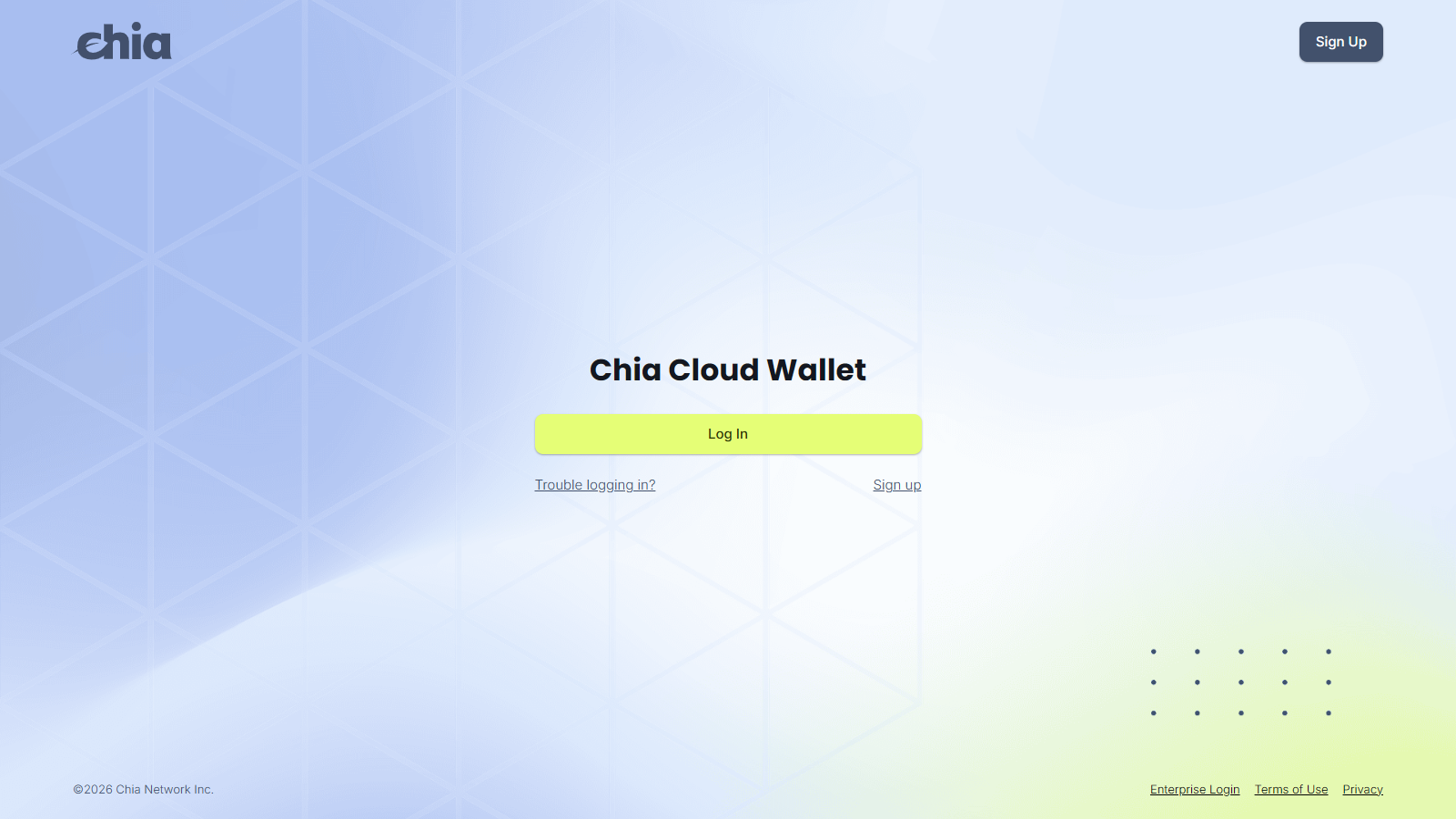
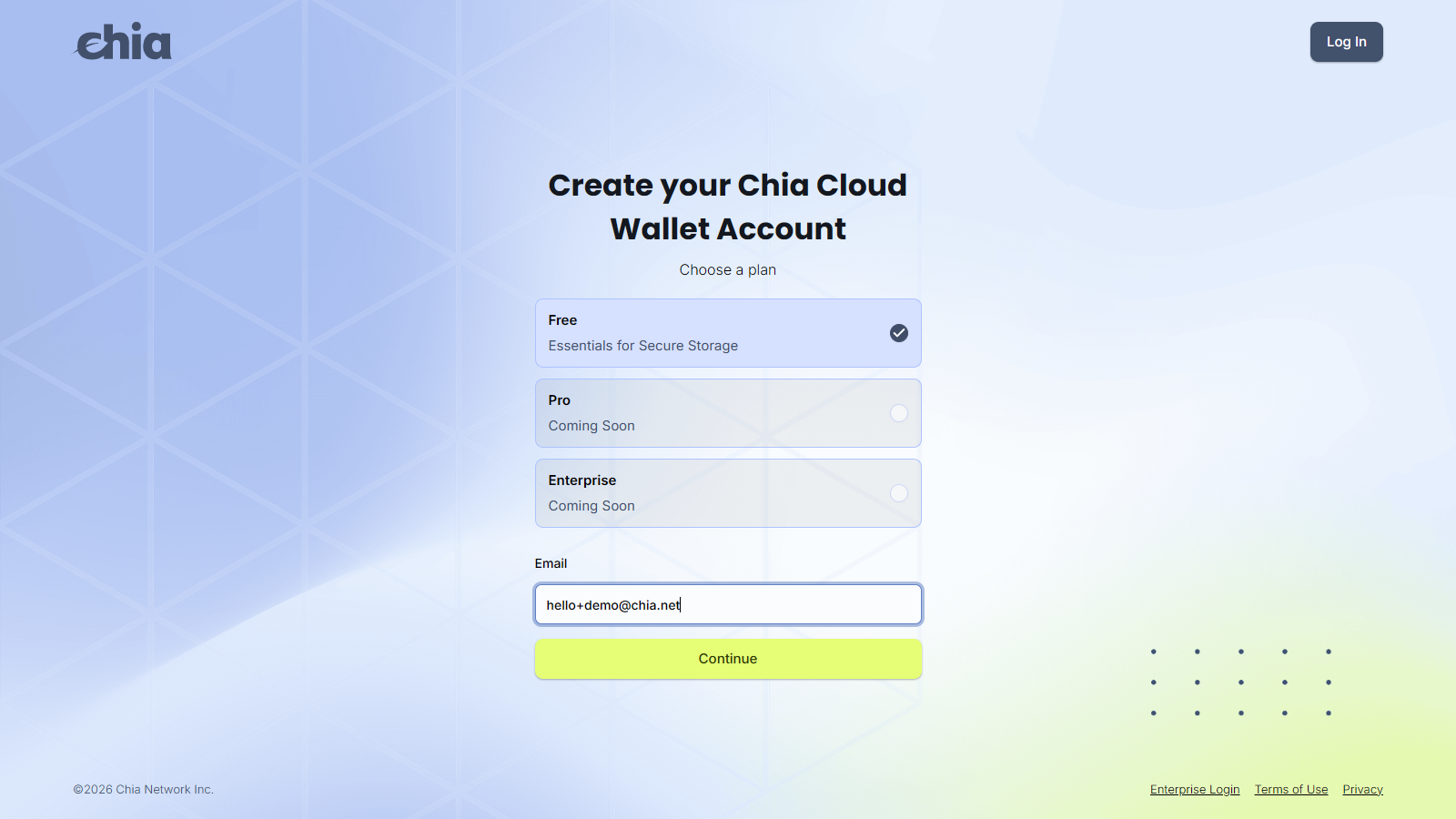
- Choose the Free plan, enter your email, and click Continue. Pro and Enterprise are not available yet.
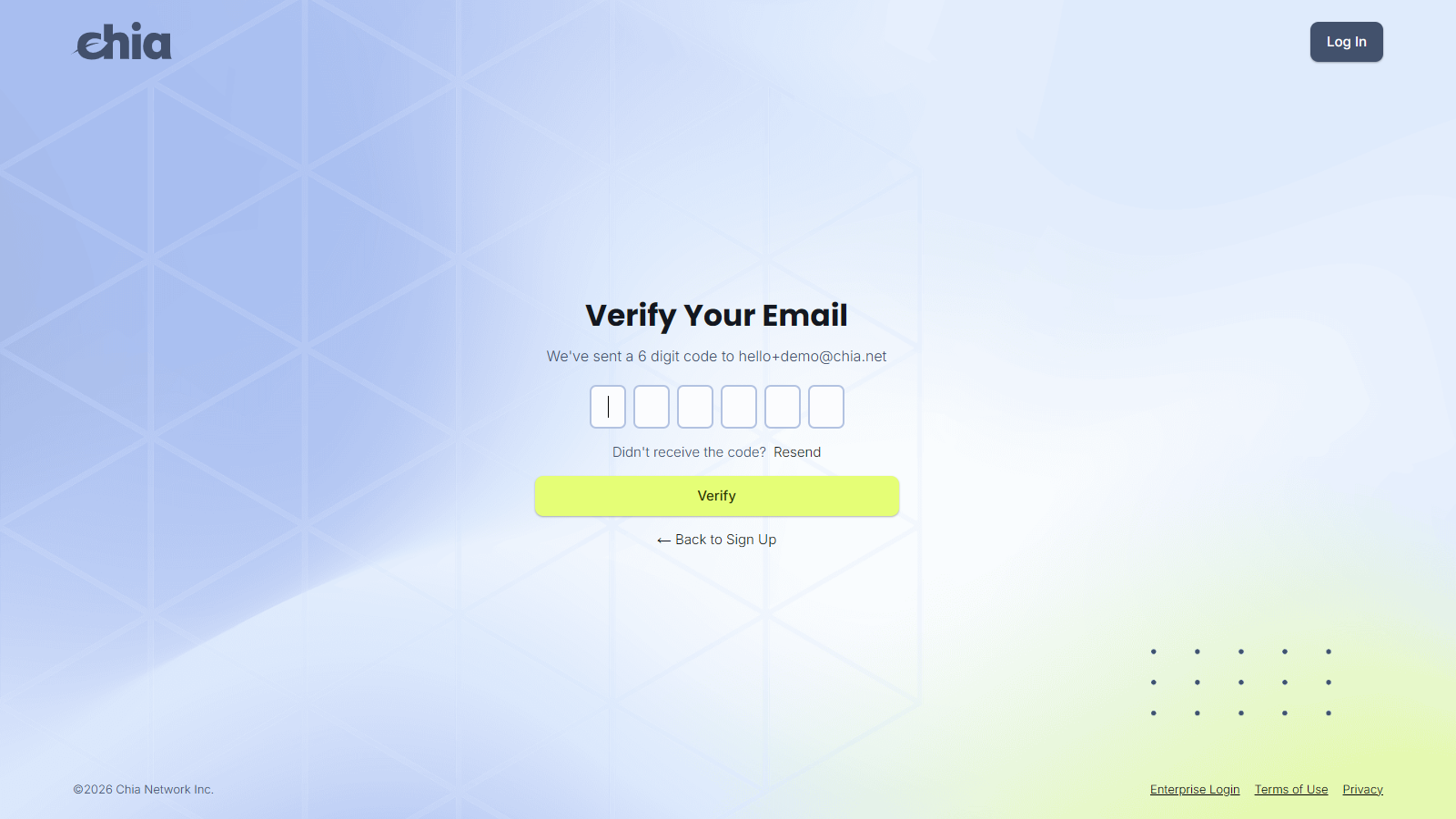
- Enter the 6-digit code sent to your email and click Verify.
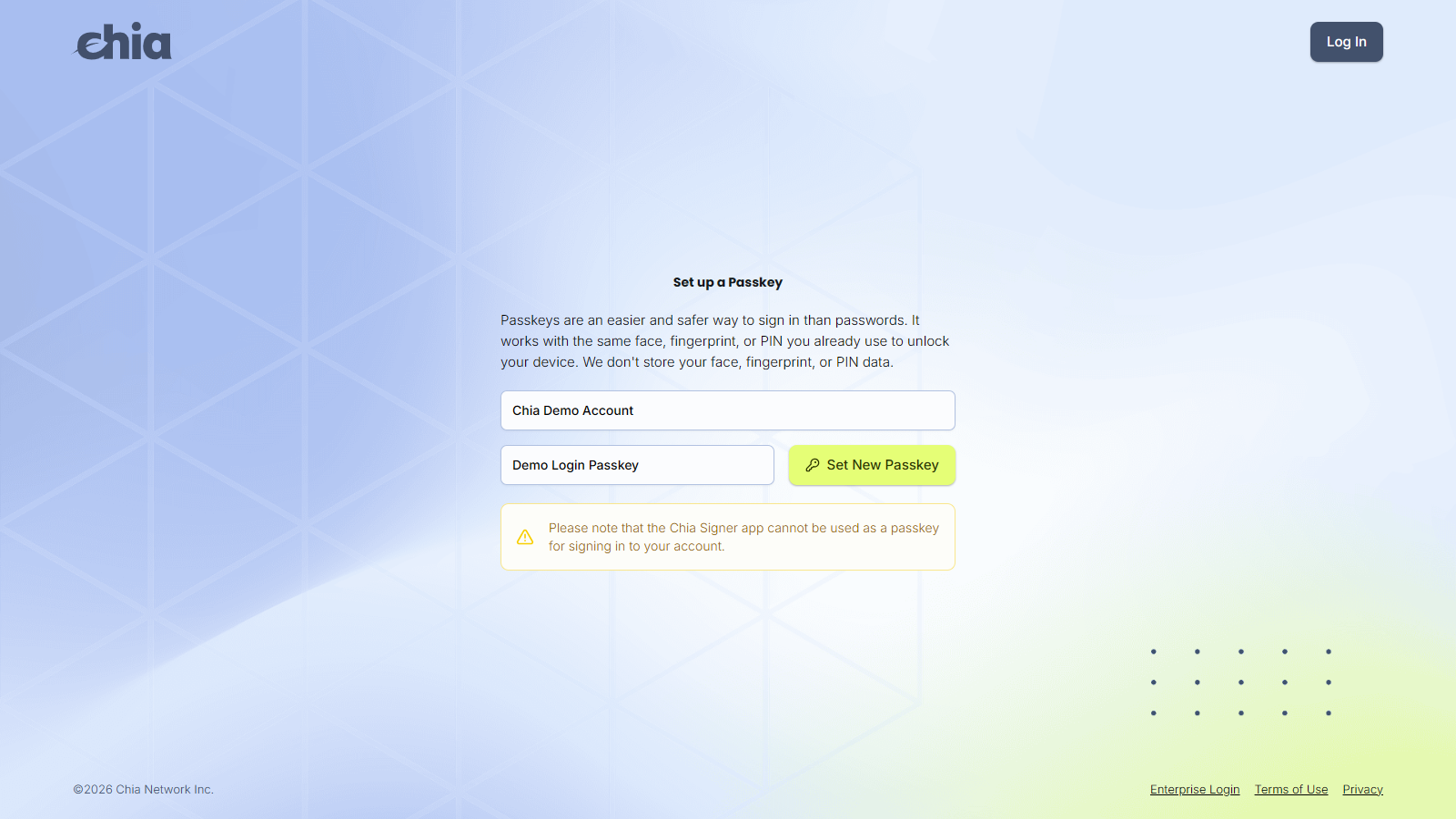
- Enter your name, name the passkey, and click Set New Passkey. This passkey is how you sign in. The Chia Signer app cannot be used as the login passkey.
Create a vault
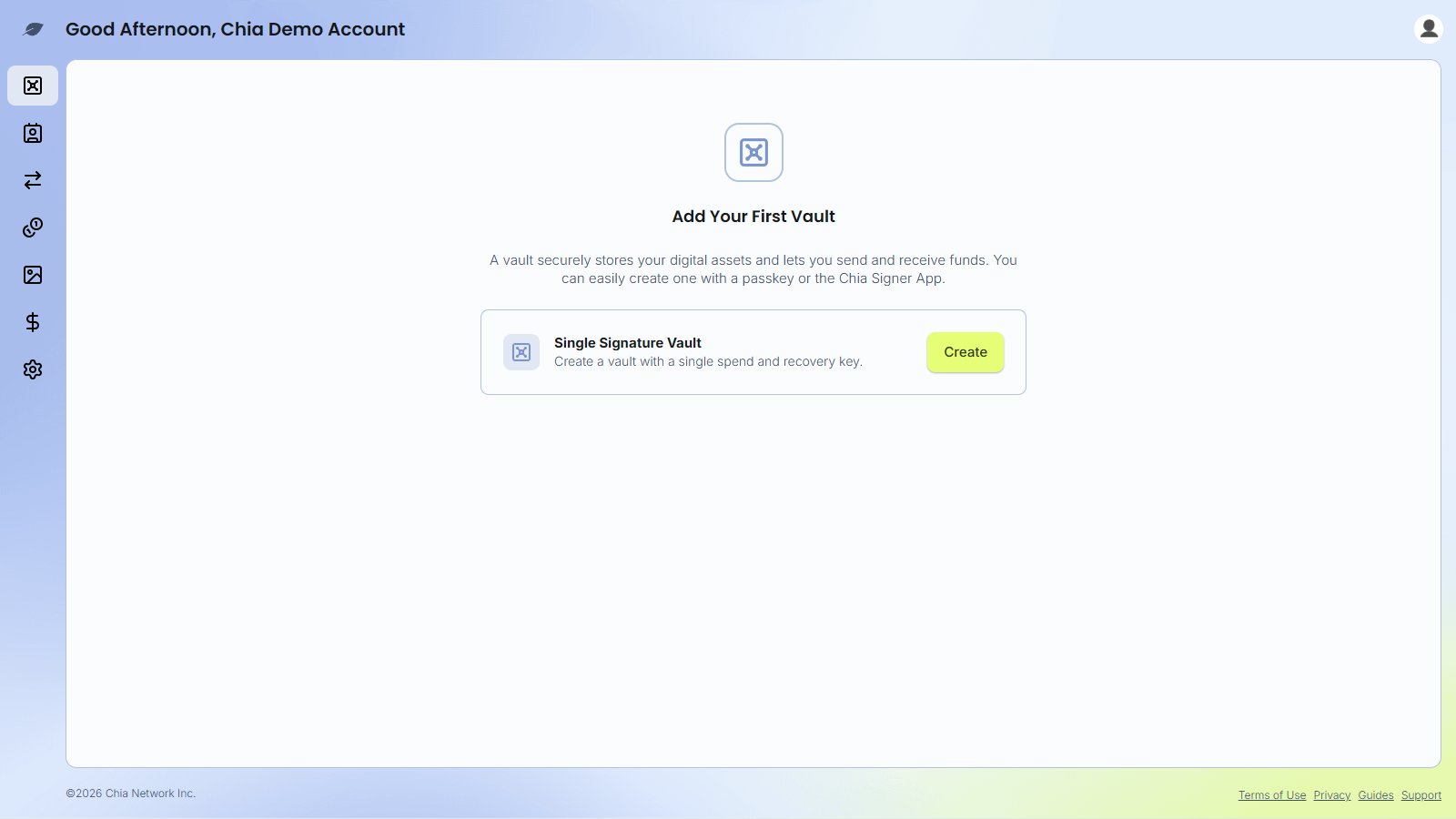
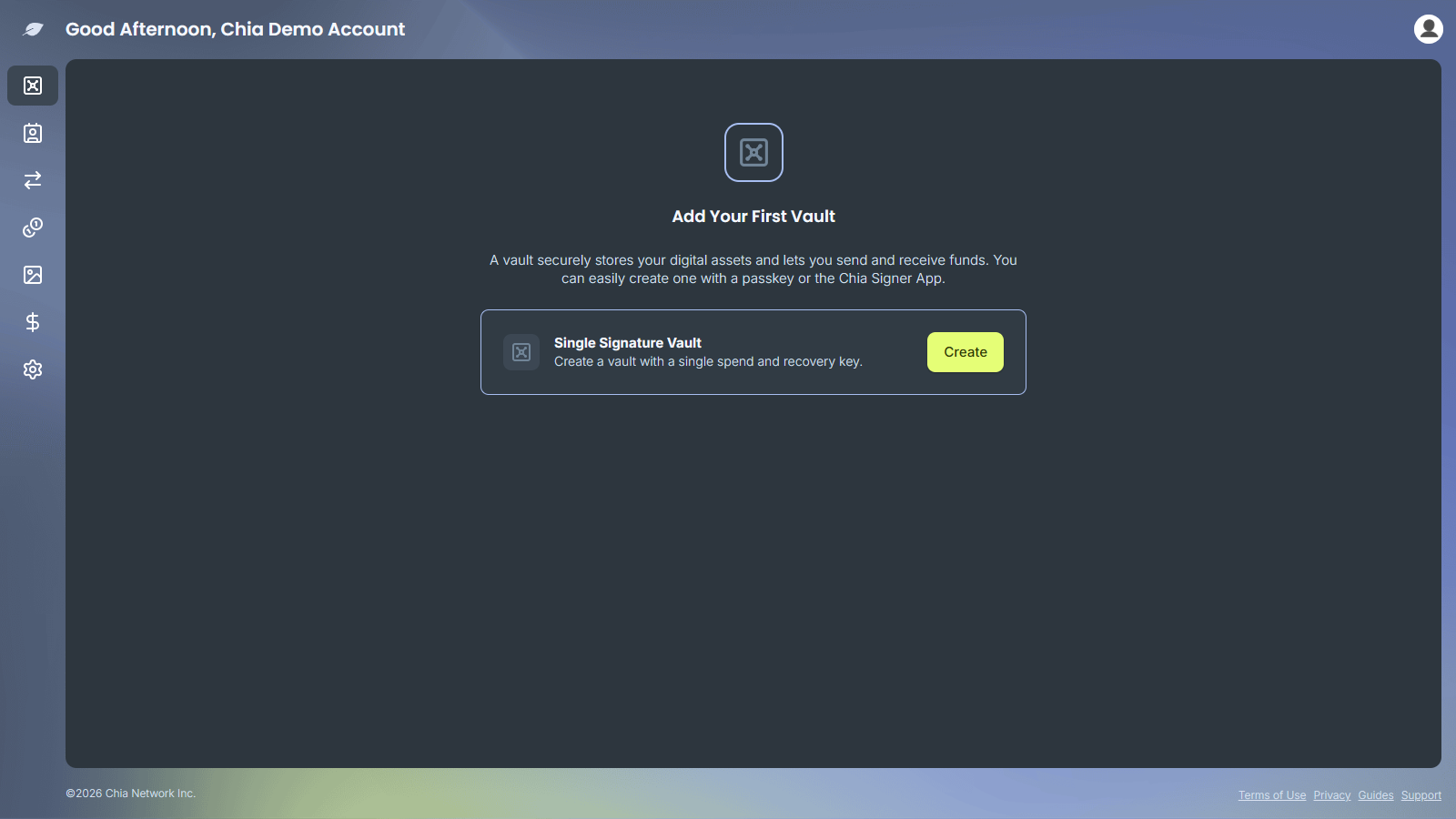
- On Add Your First Vault, click Create on Single Signature Vault.
-
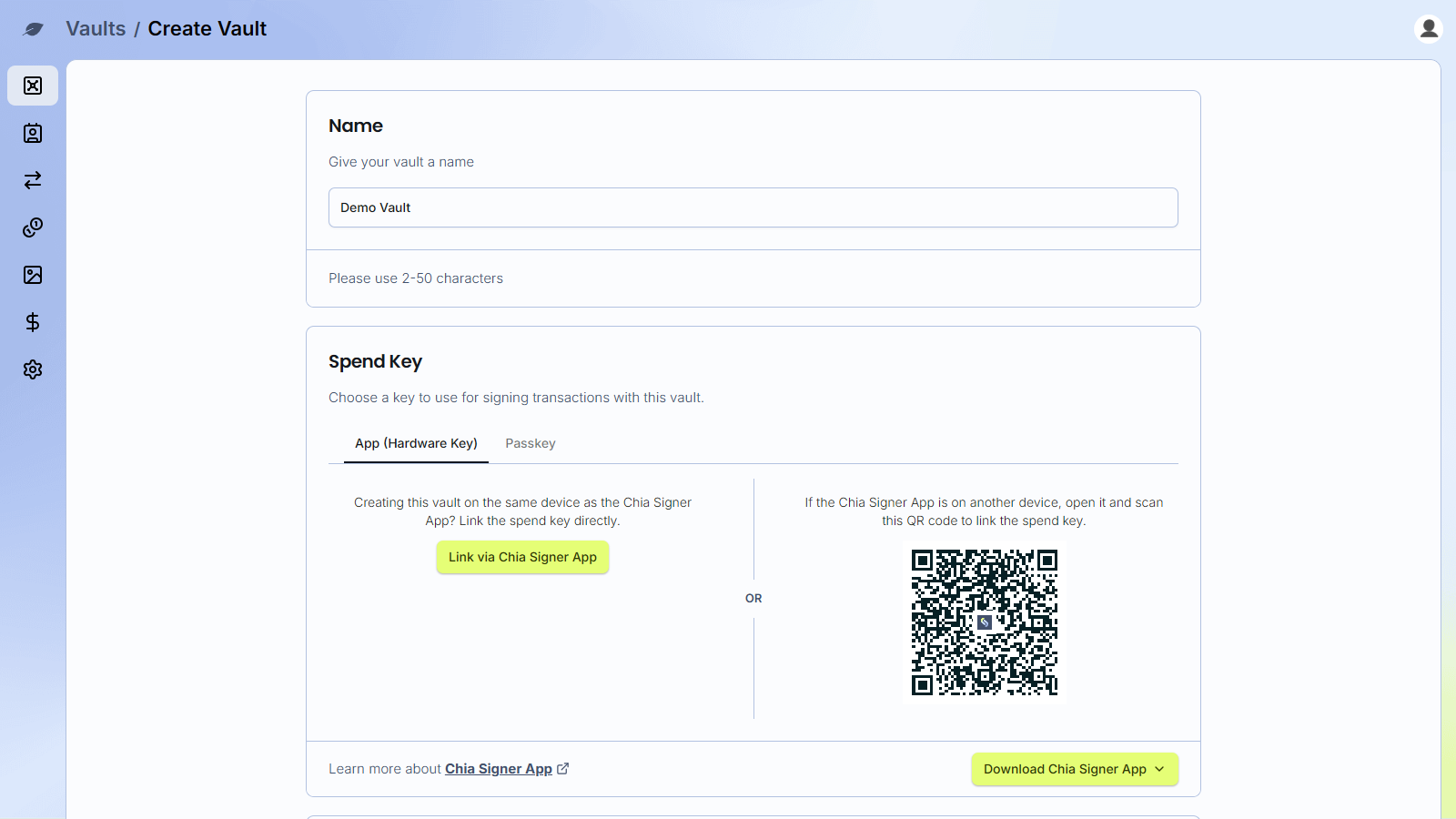
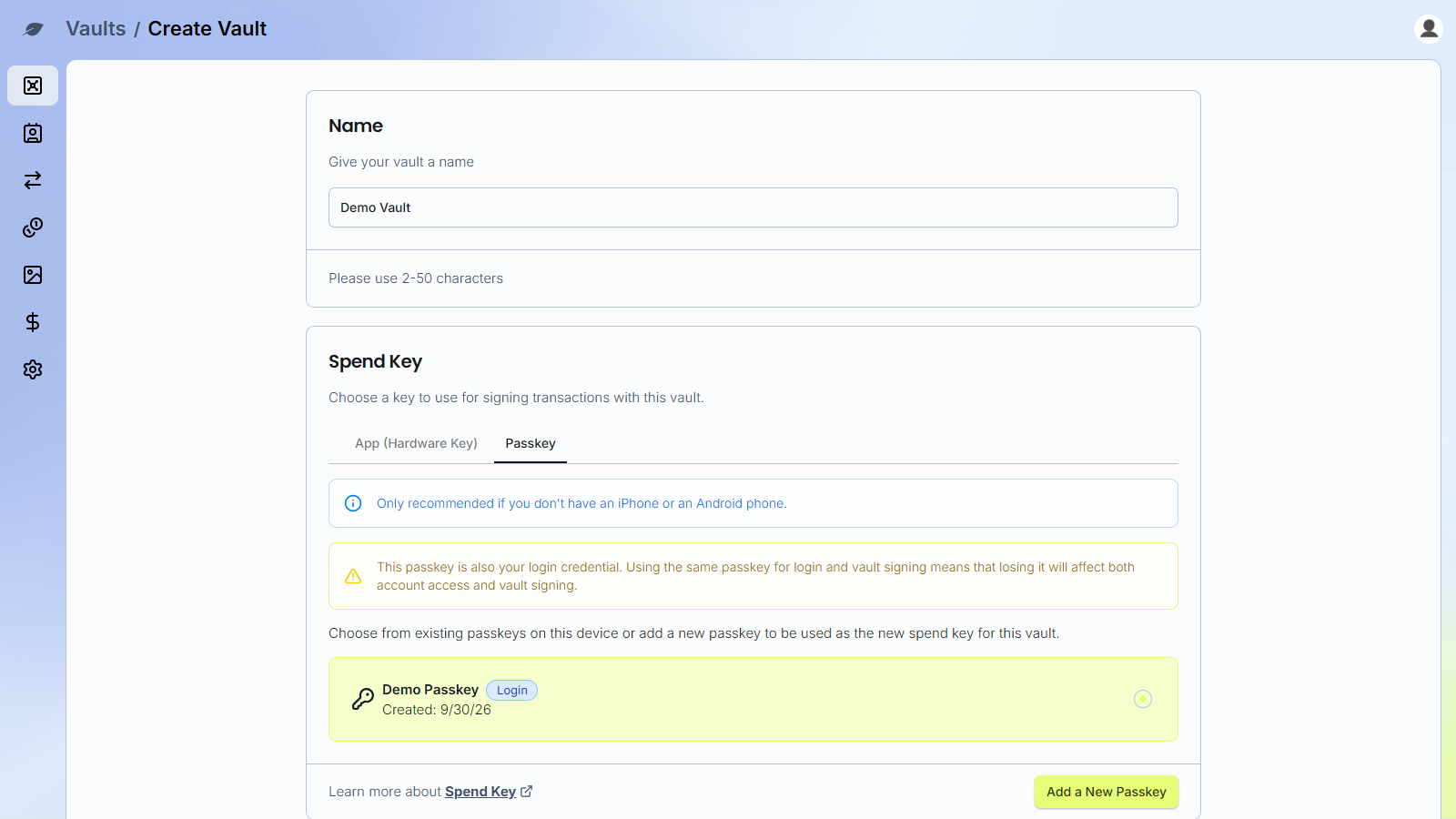
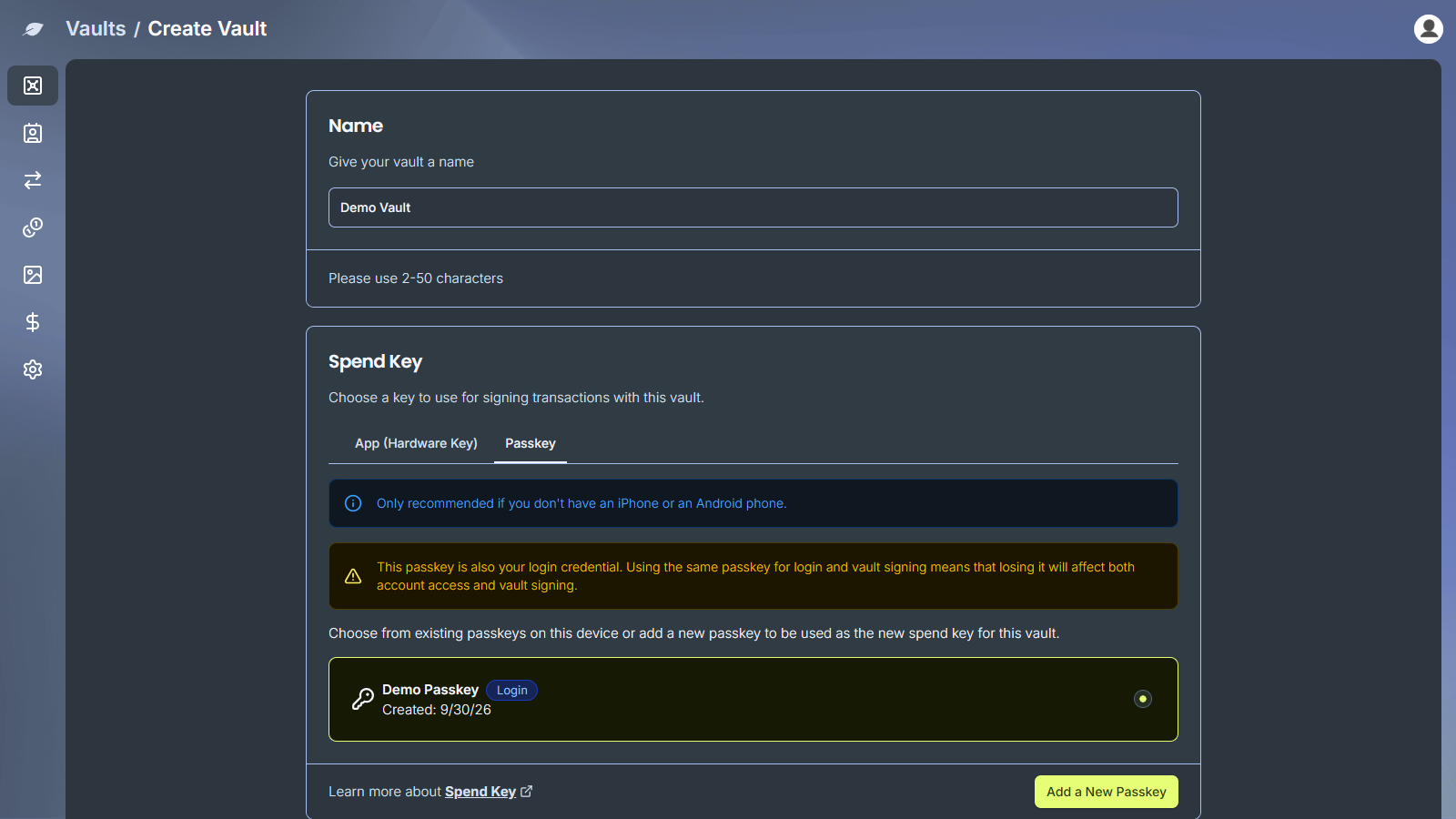
Name the vault.
-
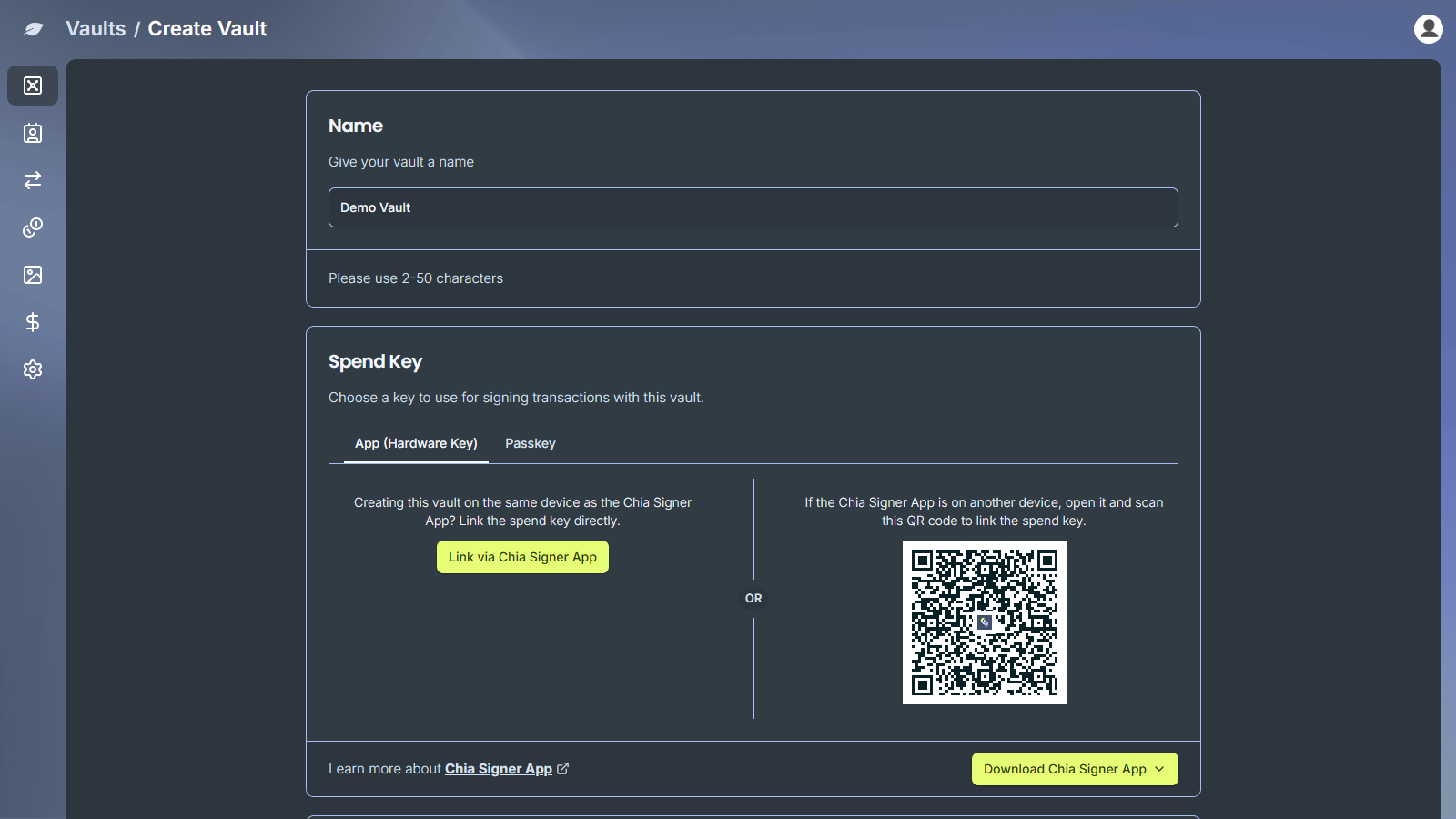
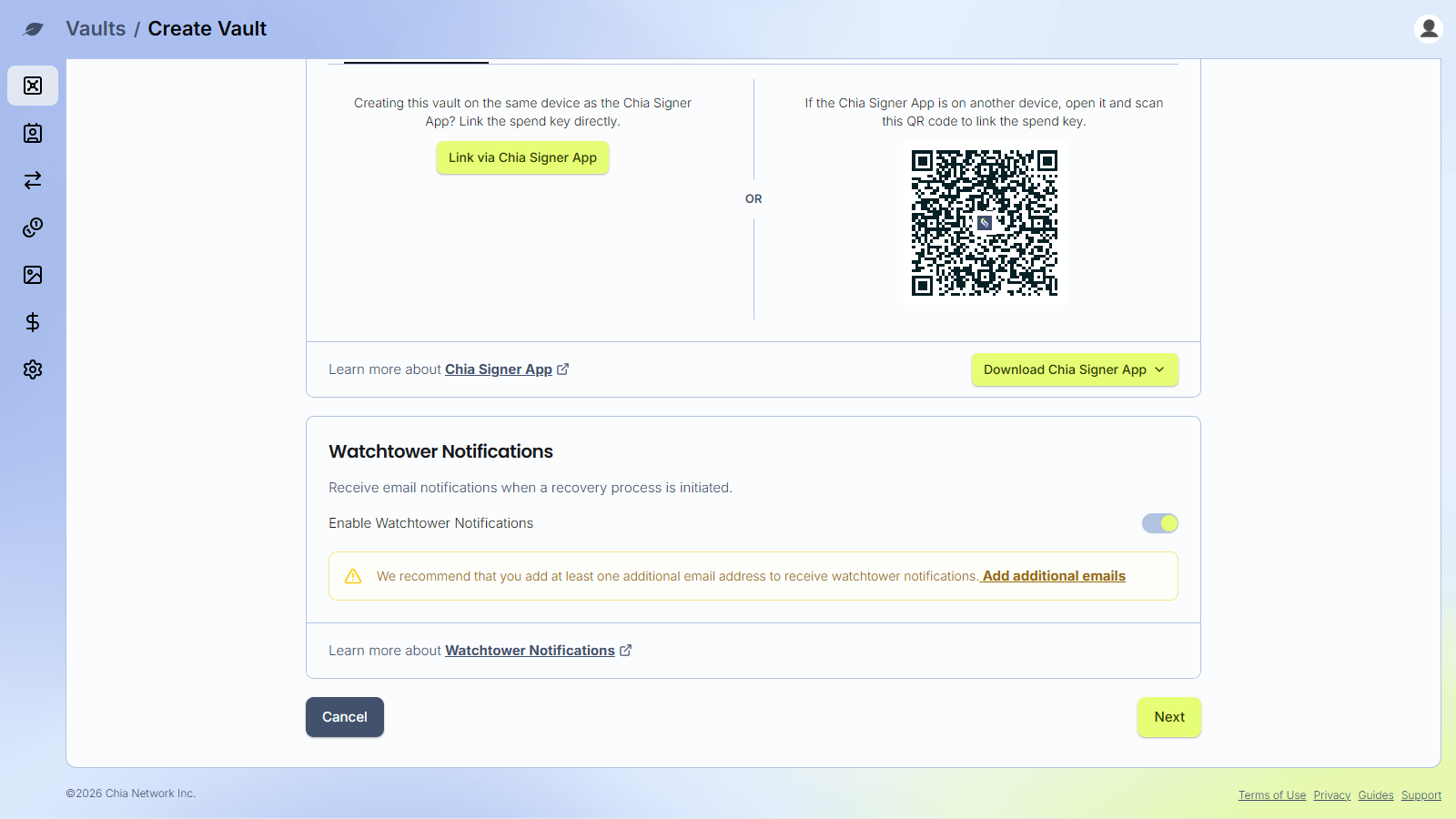
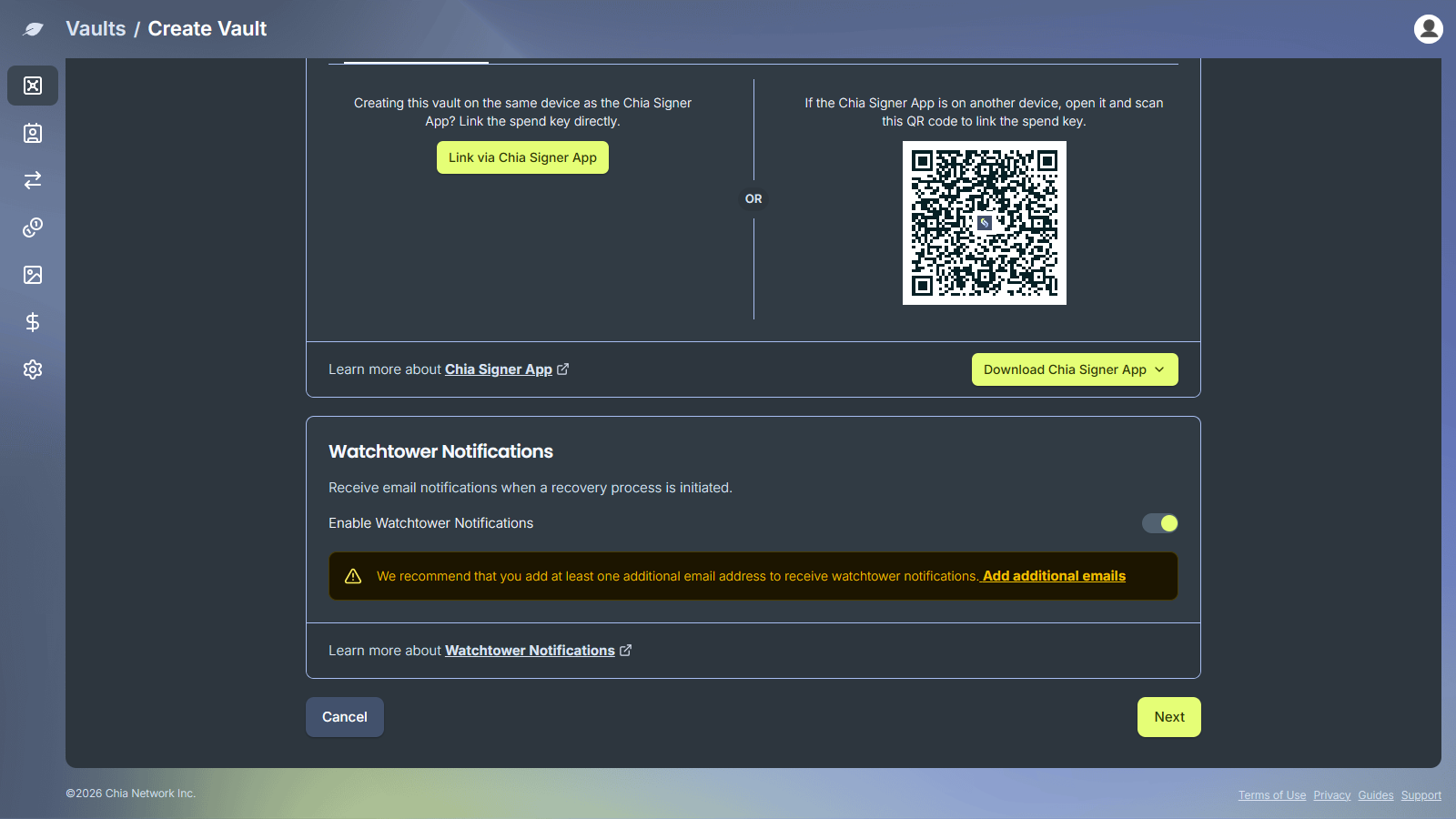
Choose a spend key. App (Hardware Key) is the usual choice. On the same device, use Link via Chia Signer App. On another device, scan the QR code. Create the key in the Signer app first. See Chia Signer.
Use Passkey only if you do not have an iPhone or Android phone. That passkey is also your login. Losing it affects both signing in and signing transactions.
- Leave Watchtower Notifications on so you get an email if someone starts a recovery. Add another email address when you can. See Watchtowers. Click Next.
- Write down the 24-word recovery phrase, in order, and store it somewhere safe. Chia does not keep a copy. You need these words to recover the vault. See Recovery.
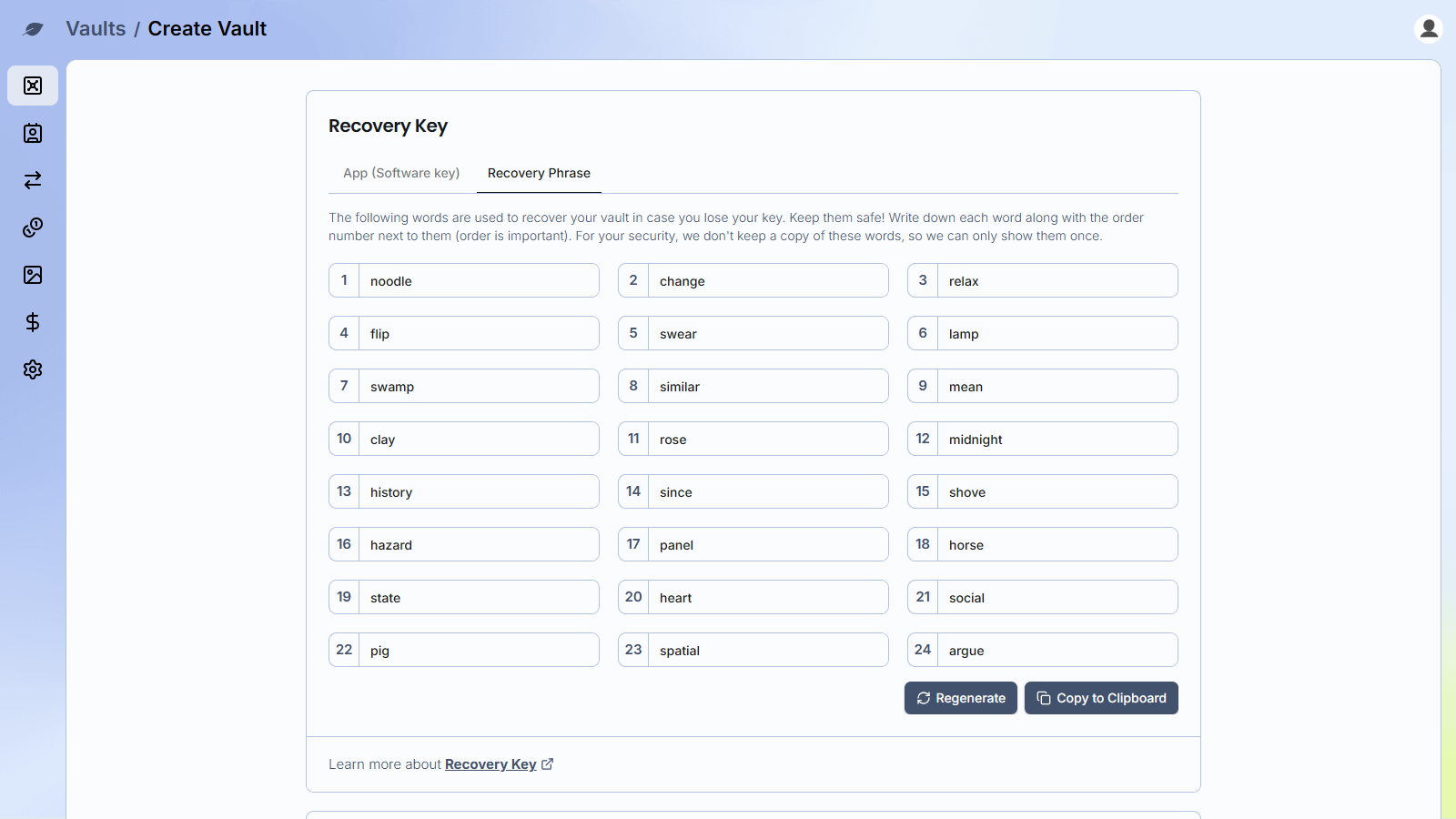
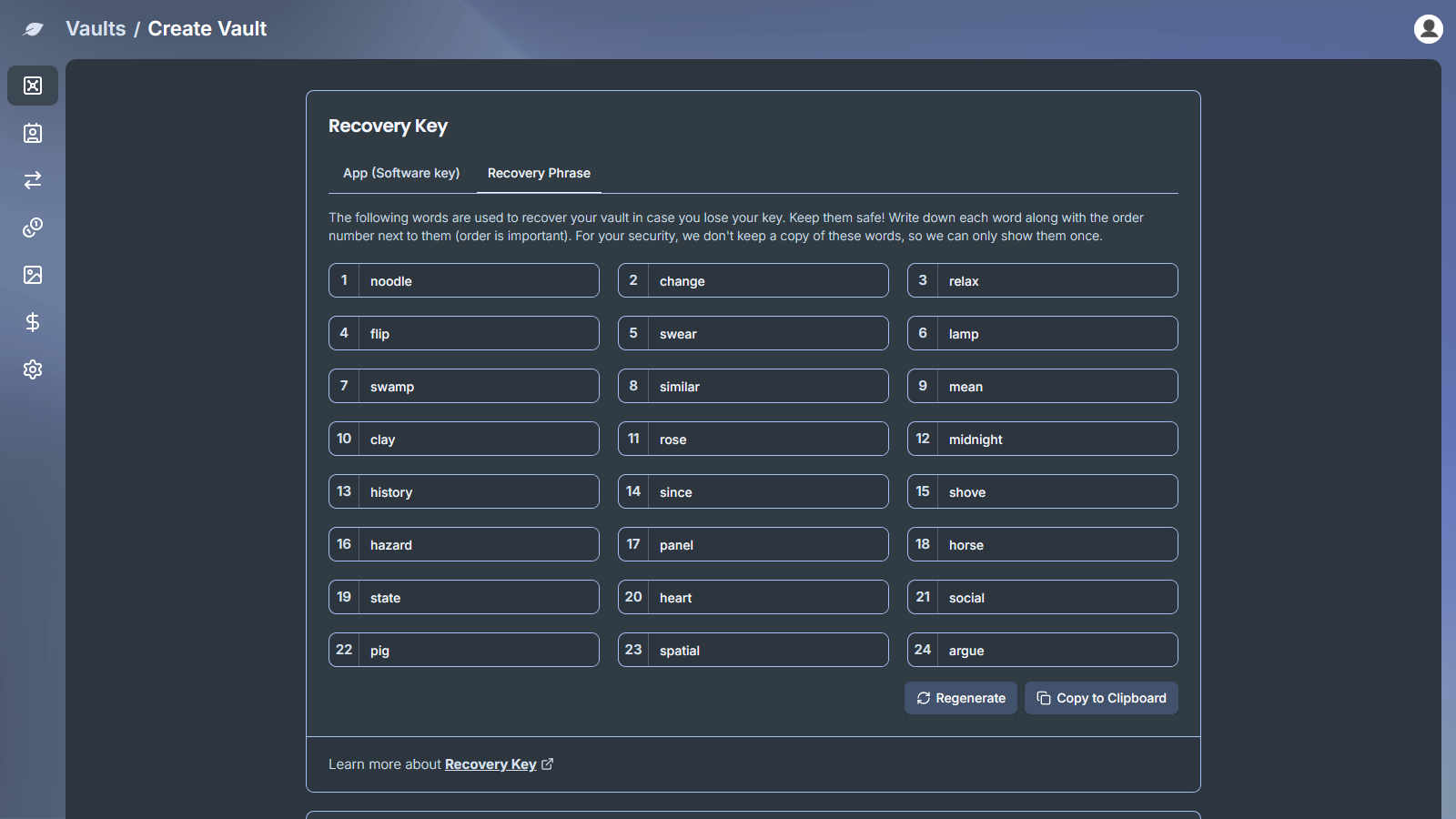
-
You can set a recovery clawback window before the vault is created. That is how long you have to cancel a recovery if the phrase is stolen. The default is fine for most people. Details are in Recovery.
-
Enter the highlighted words to confirm the phrase, check the box, and click Create.
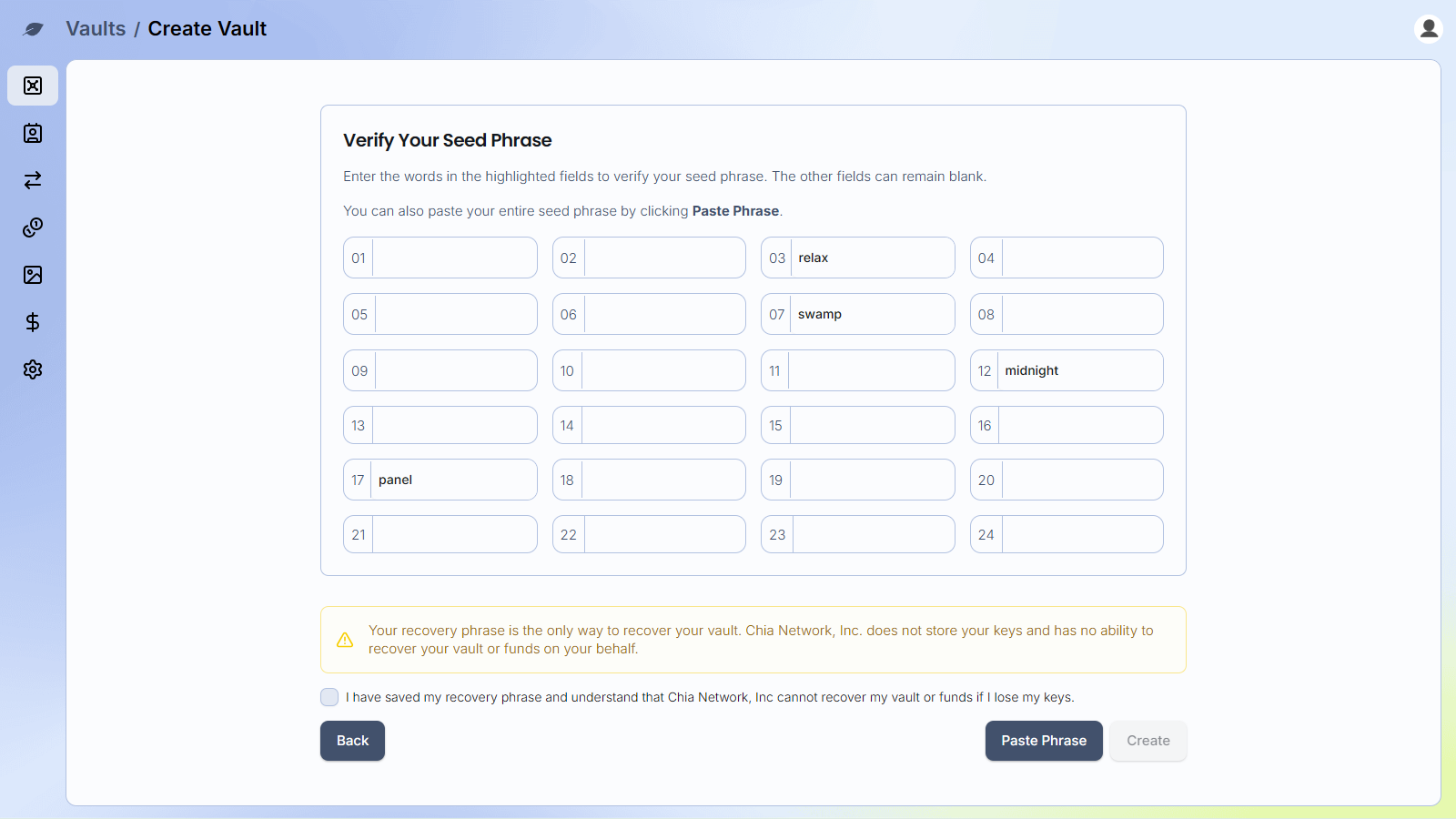
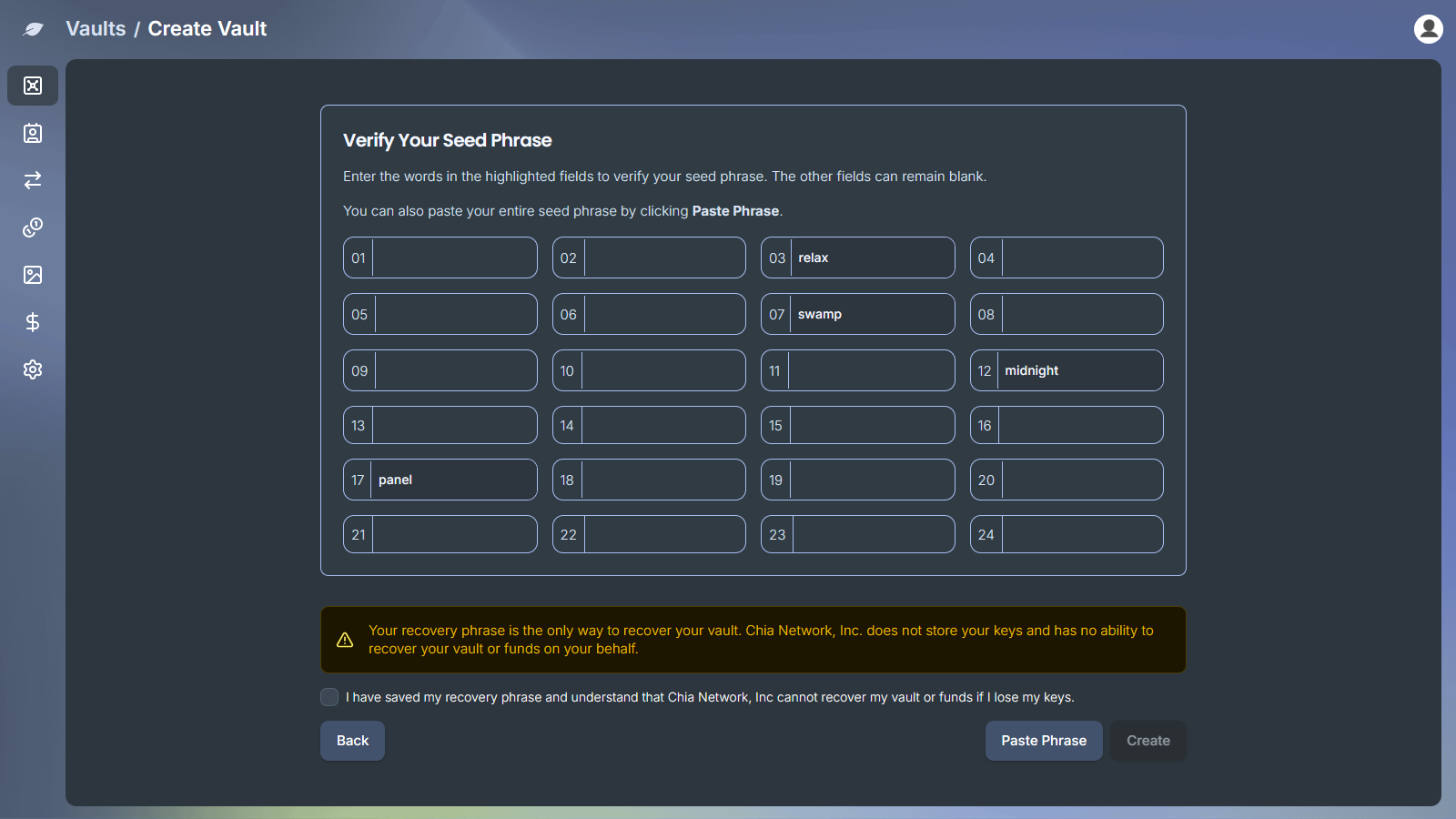
- The vault is minted in about a minute or two. The receive address appears when that finishes.
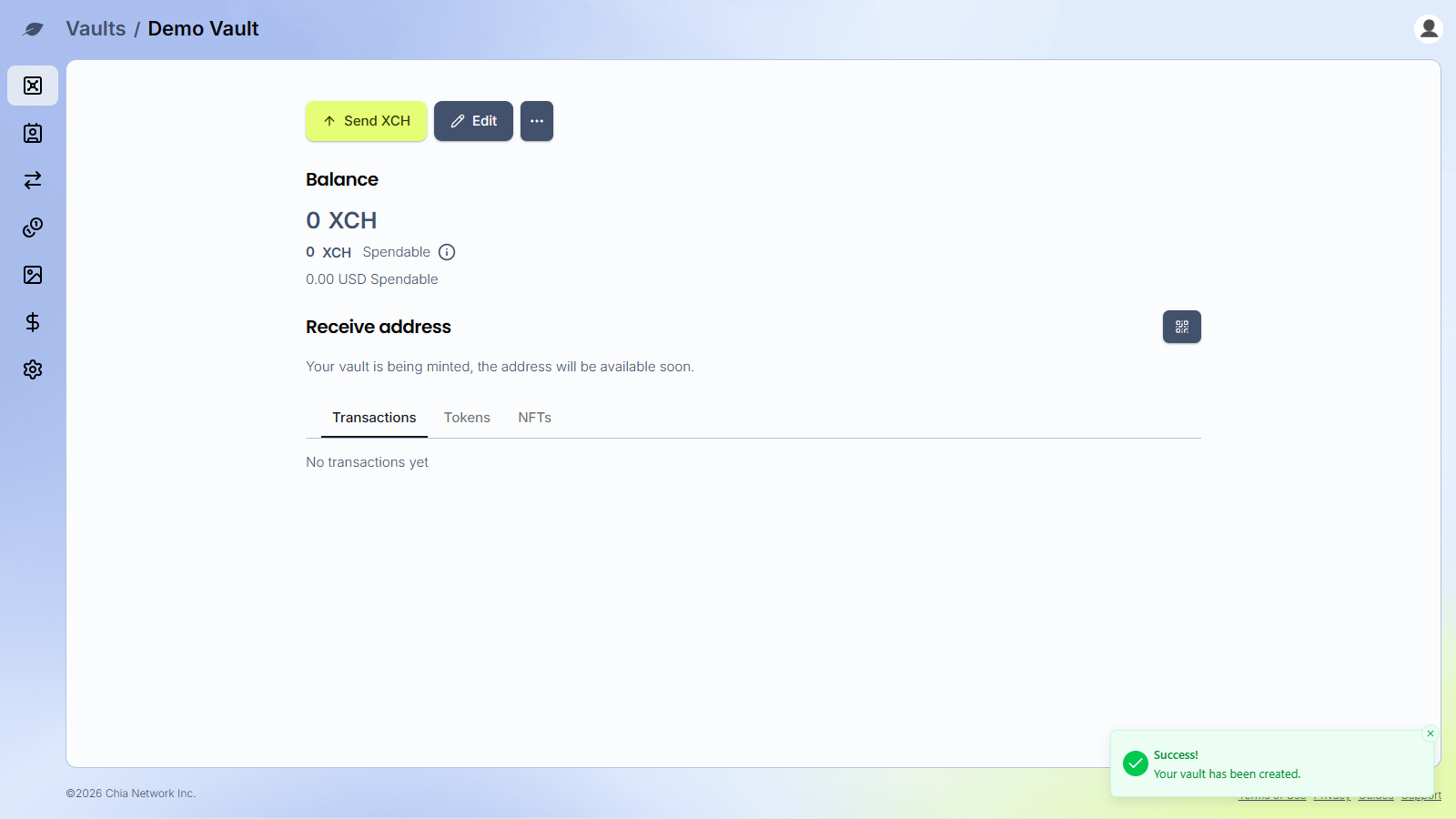
To buy XCH into this vault, see Buy XCH.
Sending funds
Open the vault and click Send XCH. Enter the destination, amount, and an optional fee, then sign with the vault spend key. A passkey vault asks for the passkey on this device. A Signer vault sends a signature request to the Chia Signer app. Confirm the details match, then approve.
- Clawback on a send: Send Clawback
- Saved recipients: Address Book
- CATs and other assets: Tokens
- Lost spend key or phrase: Recovery
- Help inside the app: In App Support
- Signer setup and signing: Chia Signer
- Common questions: FAQ
Using testnet
Developers can try Cloud Wallet with testnet TXCH at vault.chiatest.net. Account and vault setup work the same way as on mainnet. After the vault is created, request TXCH from the official faucet or the community faucet using the vault's receive address. Funds usually arrive within a few minutes.